
Smart Home Devices Keep Going Offline: Causes and Fixes
Ever tap a smart light or camera and get the dreaded “offline” message—again? If smart home devices keep going offline in your house, the cause is usually predictable: Wi-Fi congestion on 2.4 GHz, router overload, brief internet drops, or a device update that didn’t finish cleanly. The tricky part is that the symptoms can look the same even when the cause is different. Sometimes the device is truly disconnected. Other times it’s a cloud login, DNS hiccup, or a privacy setting that makes the app report offline while your Wi-Fi is still working.
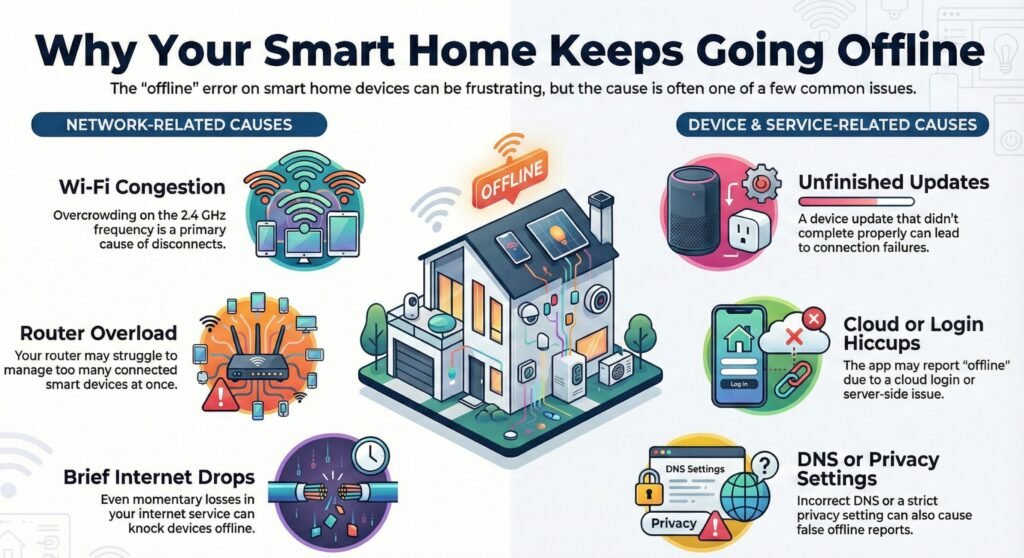
In this guide, you’ll learn the smart home devices going offline causes that show up most often, why smart home devices disconnect, and how to fix smart home devices offline without doing endless resets. We’ll walk through quick checks first, then deeper network and device troubleshooting so your setup stays stable long term.
Key Takeaways
- Most offline problems start with Wi‑Fi, not broken gadgets.
- Software, cloud access, and security settings all play a role in reliability.
- Simple setup choices can stop repeat disconnects before they begin.
If you’re here because smart home devices keep going offline, start with the quick checklist below—then use the deeper sections to match the exact symptom.
Why Smart Home Devices Keep Going Offline
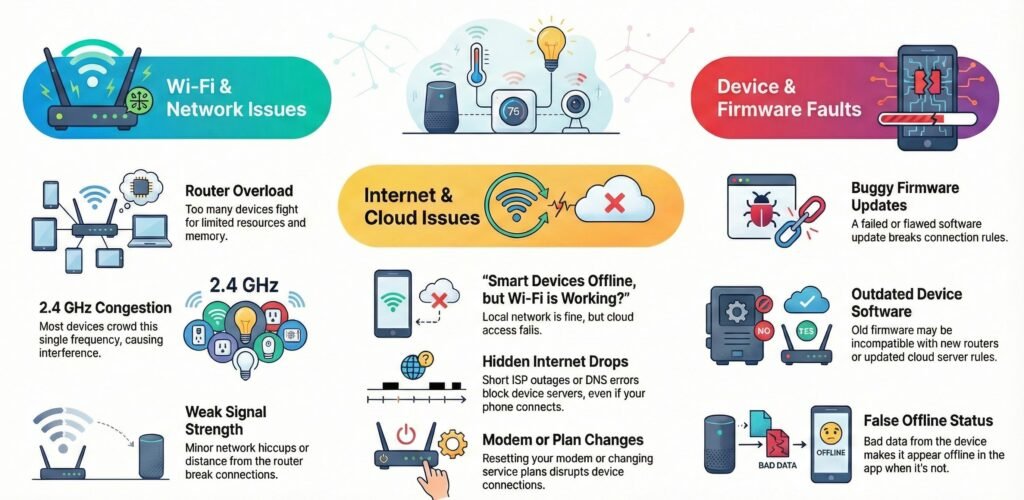
If your smart home devices keep dropping offline, the real issue is usually in your network, your internet, or the device itself. Each one fails in its own way, and knowing the difference is the fastest path to smart home devices offline troubleshooting that actually fixes the root cause.
Smart Home Devices Going Offline Causes You Can Spot Fast
Most smart devices need solid Wi‑Fi, and even minor network hiccups can break that link. Weak signal, crowded 2.4 GHz traffic, or router overload are the most common smart home devices going offline causes—especially in busy homes.
Here are some usual triggers:
- Too many devices fighting for one router
- 2.4 GHz congestion—plugs, bulbs, sensors all pile up here
- Router memory limits that drop devices if they’re idle
- Power outages that mess with how devices reconnect
Most homes hit their router’s limit way sooner than you’d think. There’s a good breakdown of this in why smart home devices go offline, showing how just a bit of network strain can mess up everything.
Smart Devices Offline but WiFi Working? Check Internet and DNS
Your internet controls cloud access, and a lot of smart home stuff needs the cloud. Even a quick internet drop can make devices go offline—so you can end up with smart devices offline but wifi working on your phone.
Internet issues often look like:
- Short ISP outages (which apps don’t always show)
- High latency during busy hours
- DNS errors blocking device servers
- Modem resets after speed or plan changes
When the internet drops, devices sometimes stay offline until they reconnect. That’s why Wi‑Fi might seem fine, but your smart home app still fails. There are good examples in this offline fix guide that tie symptoms to internet issues.
That’s the classic scenario of smart devices offline but wifi working—the local network is up, but cloud access is failing.
Why Smart Home Devices Disconnect After Updates
Firmware is what tells devices how to connect, recover, and report their status. If firmware is buggy or out of date, devices can fail re-auth, miss cloud sync, or repeatedly drop—one reason why smart home devices disconnect after updates.
Problems usually show up when:
- Firmware updates fail or get stuck
- New features break compatibility
- Old firmware can’t keep up with new routers
- Bad data makes devices look offline when they’re not
Some brands really depend on the cloud, so firmware has to match the latest server rules. There’s a good explainer on this at why smart home devices keep going offline—outdated software can block reconnection even if your network is fine.
Keeping firmware up to date makes everything run smoother, brings back missing features, and cuts down on those annoying offline alerts.
When Smart Home Devices Keep Disconnecting on WiFi
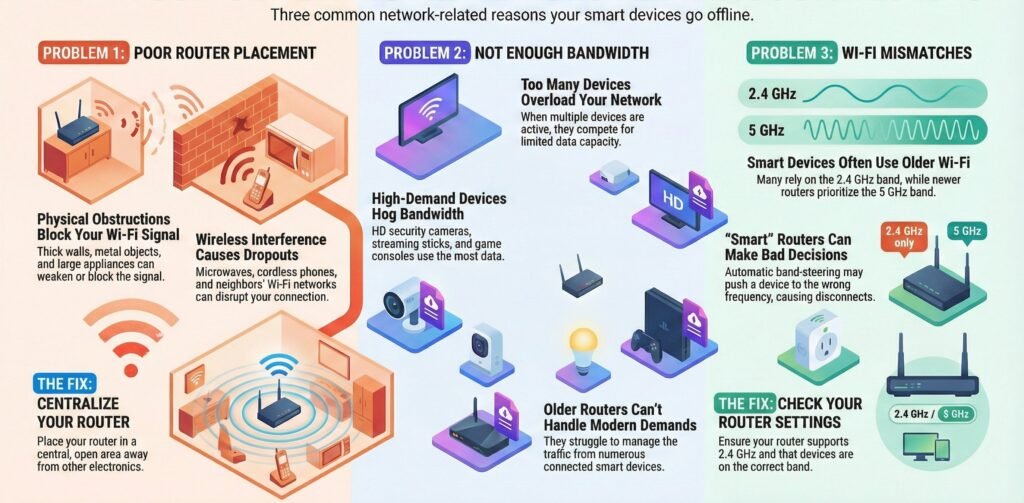
If your smart home devices keep dropping offline, it’s often the network’s fault. Where you put your router, how much bandwidth you have, and what Wi‑Fi standard you’re using all matter a lot.
Router Placement Problems That Make Smart Home Devices Lose Connection
Where you put the router determines signal strength and reach. If the router is shoved in a corner or behind thick walls, devices start losing connection and the app may label them offline. Metal stuff, TVs, and big appliances can block or bounce Wi‑Fi, too.
Lots of homes deal with wireless interference. Cordless phones, microwaves, and neighbors’ Wi‑Fi can all mess with your signal. This causes dropouts, delays, and failed commands. Try keeping the router in the middle of your home and away from electronics if you can.
This simple move fixes a surprising number of cases where smart home devices losing connection looks like random offline errors.
Placement issues to watch for:
- Routers on the floor or hidden in cabinets
- Routers near big metal things
- Routers right next to other wireless gear
Problems like these are a big reason smart plugs or cameras disconnect, as described in this smart home Wi‑Fi issues guide.
Bandwidth Limitations
Bandwidth is just how much data your network can handle at once. If too many devices are active, things slow down. Smart cameras and streaming gear use way more data than lights or sensors.
If your internet plan or router can’t keep up, devices disconnect to keep things running. You’ll notice this when everyone’s home, or during work hours. Older routers struggle the most when there are lots of devices.
Devices that eat up bandwidth:
- Security cameras with HD video
- Streaming sticks and smart TVs
- Game consoles and cloud backups
Running a speed test and counting up your devices can help spot overload, as explained in network tests that fix smart home issues.
Wi‑Fi Standards and Compatibility
Wi‑Fi standards decide how devices talk to your network. A lot of smart home stuff still relies on old Wi‑Fi 4 or 2.4 GHz. Newer routers focus on faster Wi‑Fi for phones and laptops, sometimes leaving smart devices behind.
If your router combines bands or pushes devices to the wrong band, smart home devices keep disconnecting wifi—especially older plugs, bulbs, and sensors. This is especially true for low-power sensors.
Things to check:
- Router supports 2.4 GHz Wi‑Fi
- Firmware doesn’t block older standards
- Devices are on the right Wi‑Fi band
You’ll run into these problems a lot during setup, as explained in smart home Wi‑Fi troubleshooting steps.
If setup succeeds but devices later drop, that’s often smart home devices keep disconnecting wifi due to band steering or compatibility.
Smart Home Devices Offline Troubleshooting by Device Type
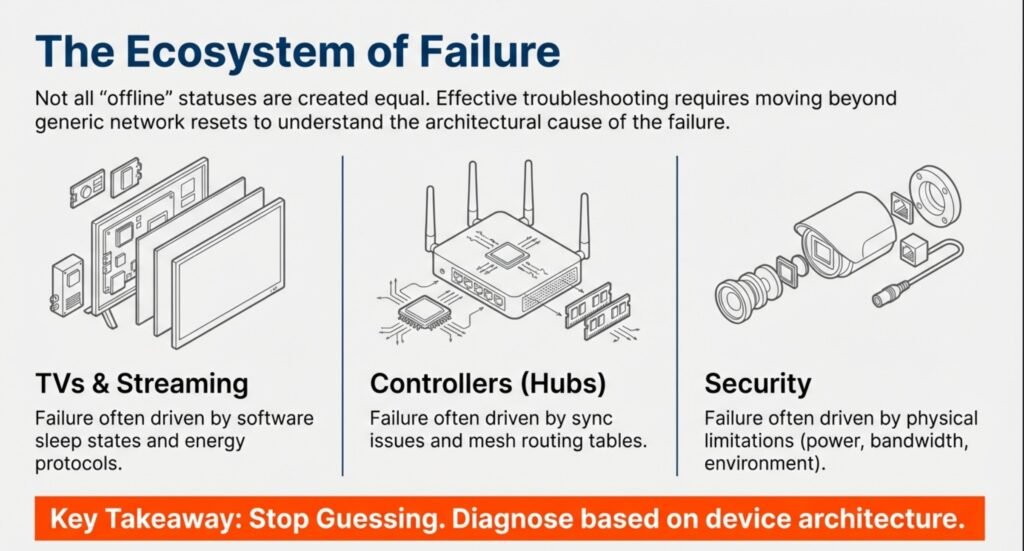
Sometimes, devices drop offline for reasons specific to how they connect, update, or get power. TVs, controllers, and security gear all fail in their own weird ways, so the fix depends on what you’re dealing with.
TVs and Streaming Devices
Smart TVs and streaming boxes often go offline because of Wi‑Fi sleep settings or software updates. Some models slow down network activity when idle, which messes with reconnection.
Try turning off power-saving or fast-boot modes in your TV settings. These modes cut network access to save a bit of energy. Also, check for pending updates and install them—old software causes a lot of disconnects.
If your TV is on Wi‑Fi, keep it close to the router. TVs don’t handle weak signals well. If you can, use Ethernet for more stable streaming and to avoid drops when opening apps.
Stick to one control app if possible. Using a bunch of remote apps can cause login errors and confusion. This comes up a lot in smart TV troubleshooting guides.
Quick checks
- Turn off energy-saving network modes
- Update TV or streaming device software
- Use Ethernet if available
Home Automation Controllers
Automation controllers run into trouble when hubs lose sync with devices or the cloud. This can break routines, schedules, and app controls.
Start by checking your hub’s lights and app alerts. A solid light usually means local control is fine, even if the cloud is down. If the app says devices are “unavailable,” try restarting the hub—not every device.
Zigbee and Z‑Wave controllers need time to rebuild their mesh after a reboot. Wait at least 15 minutes before messing with devices. Moving them too soon can mess up routes.
What to avoid
- Resetting the hub for every short outage
- Power cycling devices before the mesh is rebuilt
Security Cameras and Sensors
Security gear drops offline if it doesn’t get enough power, signal, or bandwidth. Cameras especially need good upload speeds and steady power.
Battery cameras go into sleep mode to save power. Low batteries mean missed alerts or recordings. Always check or swap batteries before you mess with the network.
For wired cameras, test the power adapter and cables. Heat or weather can cause silent failures. Wi‑Fi cameras need a clear path to the router or extender.
Common fixes
- Check battery levels first
- Boost Wi‑Fi signal near cameras
- Test sensors after moving them
Security, Privacy, and Regulatory Considerations
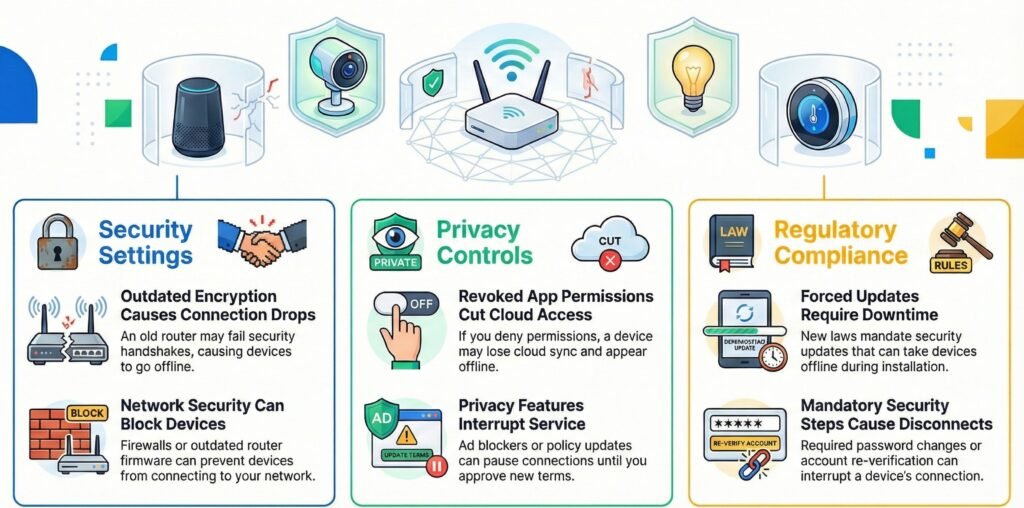
Security settings, how your data’s handled, and even local laws can affect how steady your smart home feels. These are often the reasons devices disconnect after updates, setting tweaks, or blocked network access.
Encryption and Secure Connections
Most smart home devices use encryption to keep your data safe as it travels across your network. That protection is important, but honestly, it can be a headache if your router or device setup isn’t up to date.
If your router can’t handle newer encryption handshakes, devices may drop during reconnection—another quiet reason smart home devices keep going offline after updates.
Check for these usual suspects:
- Router firmware that’s out of date
- WPA2 or WPA3 security turned off
- Firewalls blocking your device’s traffic
Security agencies always recommend basics like strong passwords and proper authentication. The NIST smart home security guidance breaks down how locking down access can actually reduce connection failures without making your system less secure.
Privacy Risks With IoT Devices
Smart devices scoop up all sorts of data—voice clips, video, when you’re using them, sometimes even your location. To keep privacy risks down, a lot of devices limit how and when they connect online.
If you block certain permissions, privacy controls might cut off cloud access. That can make your device look offline, even though it’s still powered up and on Wi‑Fi.
Keep an eye out for these triggers:
- App permissions you’ve revoked
- Cloud sync turned off
- Network-level ad or tracker blockers doing their thing
Sometimes, devices pause their connection when privacy policies change. It’s meant to protect your data, but usually it means you’ll need to review settings before the device comes back online.
Compliance With Regulations
New regulations force smart home brands to follow strict security standards. These rules change how devices log in, update, and stay online.
Starting in 2025, some regions rolled out tougher consent rules and required security updates. The changes in smart home privacy and security laws in 2025 explain why your devices might refuse to connect until you accept new terms or install an update.
Common compliance headaches include:
- Forced firmware updates
- Mandatory password changes
- Account re-verification
These steps boost long-term safety, but they’re also the reason devices sometimes go offline after a legal or policy update.
Data Quality and Storage Challenges With Connected Devices
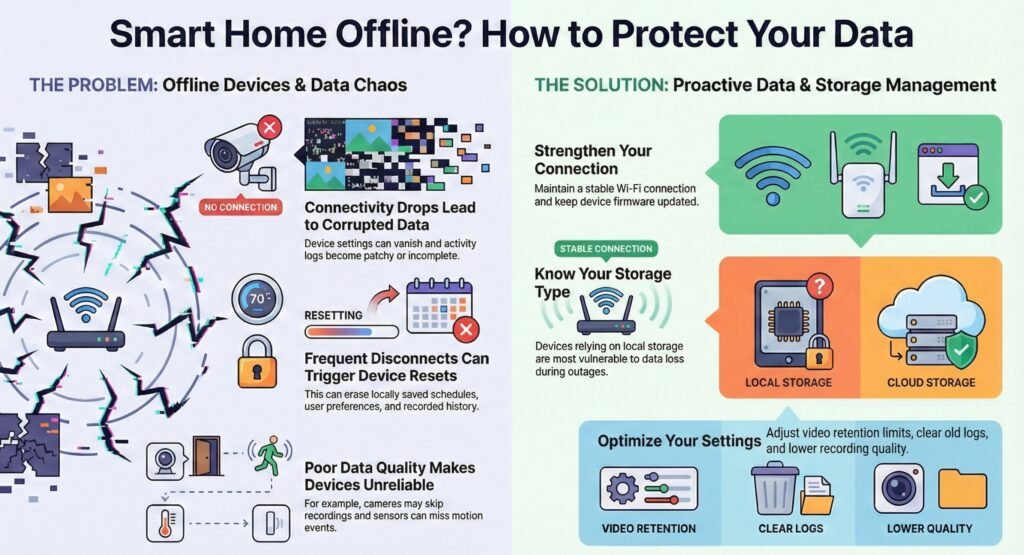
If your smart home gadgets keep dropping offline, chances are you’ll end up with corrupted or missing data. Settings might vanish, activity logs get patchy, or your apps show the wrong info when things finally reconnect. It’s annoying.
Data Loss and Device Resets
When devices go offline a lot, they sometimes reset themselves—partially or all the way. If that happens, you might lose schedules, preferences, or any history saved locally. Cloud-based devices can lose recent data too, especially if they didn’t sync before disconnecting.
Poor data quality is pretty obvious. Motion sensors miss stuff. Energy reports have blank spots. Cameras skip recordings. It makes devices unreliable, even after they’re back online.
To avoid losing data, check where your device actually stores info. Devices relying mostly on local storage take the biggest hit during outages. A stable Wi‑Fi connection and updated firmware help devices sync quickly and keep your data safe during short disconnects.
Managing Data Storage Needs
Offline issues usually reveal weak spots in your data storage setup. As you add more gadgets, your system has to handle extra data without slowing down or failing. This is more than just a network problem—it’s about scalability.
Lots of devices save data in the cloud but temporarily keep files locally. Local storage fills up fast, especially with cameras and audio gear. When it’s full, devices might stop recording or just go offline.
It’s smart to tune your storage settings to fit your setup. Check video retention limits, clear out old logs, and lower recording quality if you need to. These tweaks help keep your data in shape and your smart home running smoothly, without constant offline headaches.
Cloud Outages and App Updates That Make Devices Look Offline
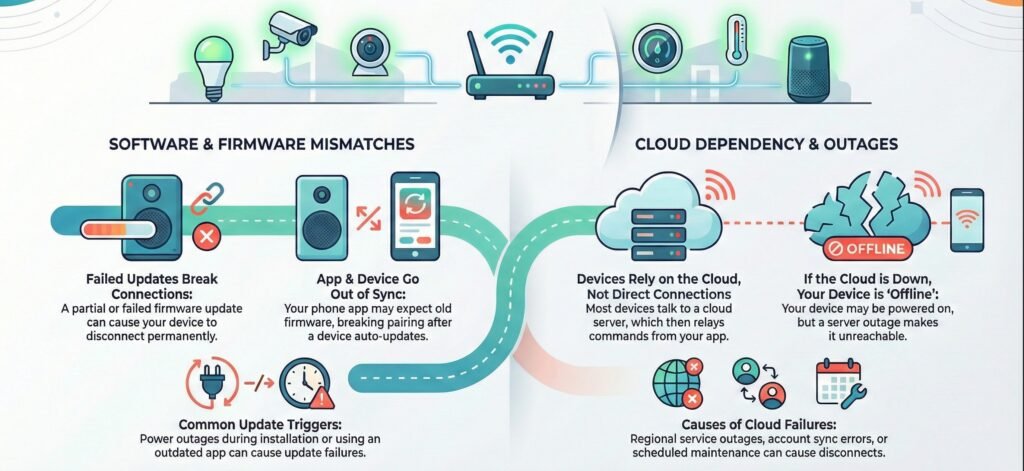
A lot of the time, smart home devices keep going offline because of software quirks, cloud dependence, or AI features that always need to be online. Sometimes your Wi‑Fi looks fine, but something else is broken.
Firmware and App Updates
Firmware is what lets your device talk to your network. If an update fails or gets stuck, devices can disconnect or just refuse to come back online.
You’ll notice this after a power cut or a forced update. The device runs new firmware, but your phone app expects the old way. That mismatch breaks pairing and cloud sync. Not ideal.
Here are some common update triggers:
- Auto-updates during busy hours—these can interrupt your normal use
- Partial installs if the power or internet cuts out
- Outdated apps that can’t handle new firmware
These updates usually depend on cloud services, so any mismatch can break reconnection.
Cloud Dependency and Outages
Most smart devices don’t talk to each other directly. They talk to the cloud, then back to your app. If the cloud service is down, your device might look offline even though it’s still powered up.
Cloud AI platforms handle logins, commands, and syncing. If those systems slow down or go offline, your devices lose access.
This usually pops up during:
- Regional cloud outages
- Account sync failures
- Service-side maintenance
How to Fix Smart Home Devices Offline and Prevent Repeat Drops
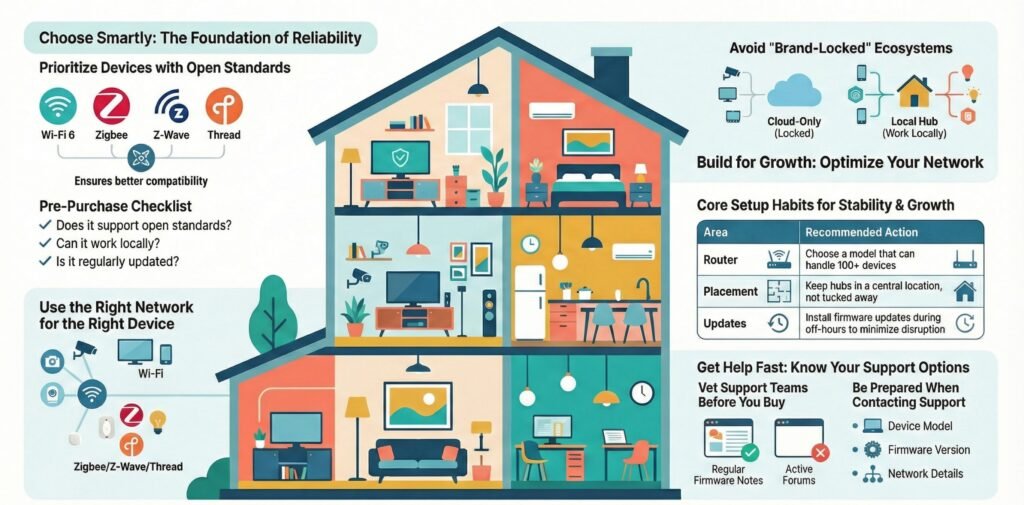
Reliable automation comes down to using good standards, planning for growth, and getting help fast when stuff breaks. These habits cut down on dropouts and help you fix things before they become everyday annoyances.
Choosing Standards-Compliant Devices
Try to buy devices that follow open standards. When products play nicely together, you don’t need hacks or awkward workarounds. That’s a big deal when your smart home devices keep going offline because of compatibility issues.
Look for devices that support Wi‑Fi 6, Zigbee, Z‑Wave, or Thread. These standards handle busy networks better and bounce back faster after a disconnect.
Steer clear of brand-locked ecosystems that only work with one app or hub. If the company shuts down servers or drops support, your devices could just stop working. Not fun.
Before buying, ask yourself:
- Does it support at least one open standard?
- Can it work with a local hub instead of needing the cloud?
- Has it gotten firmware updates in the past year?
Standards aren’t magic, but they do lower failure rates and make troubleshooting less of a pain.
Optimizing for Scalability and Performance
Offline issues often show up after you add “just one more device.” Planning for scale from the start saves you headaches later.
Spread out your devices. Put cameras and TVs on Wi‑Fi. Sensors, switches, and lights? Use Zigbee, Z‑Wave, or Thread to keep Wi‑Fi less crowded.
Performance gets better when each device is on the right network. Low-power gadgets stay online longer if they’re not fighting for bandwidth.
Try these habits to keep things running smooth:
| Area | What to Do |
|---|---|
| Router | Pick one that can handle 100+ devices |
| Placement | Keep hubs in the center of the house, not tucked away |
| Updates | Install firmware during off-hours |
Scalability means your setup works tomorrow just like it does today—no surprises.
FAQ
- Why do smart home devices keep going offline even with strong WiFi?
Often it’s router overload, band steering issues, or cloud login problems—WiFi strength alone doesn’t guarantee stable connections. - What does it mean when smart devices are offline but WiFi is working?
Usually the internet link, DNS, or cloud access is failing, so the app can’t reach device services even though the device is still connected locally. - What are the most common smart home devices going offline causes in busy homes?
2.4 GHz congestion, too many devices on one router, interference, and failed firmware updates. - How do I fix smart home devices offline without resetting everything?
Start with one reboot of modem/router, confirm 2.4 GHz for low-power devices, check app permissions/login, then update firmware once the network is stable. - Why do smart home devices disconnect after an update?
A partial install or app–firmware mismatch can break authentication and cloud sync until the device rechecks in.