
As an Amazon Associate, we may earn a commission if you make a purchase — at no extra cost to you.
Mesh WiFi vs Router Upgrade: How To Pick The Right Fix Fast
WiFi dead zones are brutal—one room works, the next room drops calls and turns streaming into constant buffering. If you’re stuck on mesh wifi vs router upgrade, you’re not alone — and the fastest fix depends on whether you’re dealing with mesh wifi or router upgrade for dead zones. These fixes solve different problems: mesh fixes coverage gaps, while a router upgrade fixes performance issues from one central spot. That’s why the symptoms can feel identical—slow speeds, random dropouts, and weak signal in “that one room.”
This guide is built for a real-life decision, not specs. You’ll learn mesh wifi or router upgrade for dead zones, what to choose if you’re in a small space (upgrade router or get mesh wifi for apartment), and when mesh makes sense in bigger layouts. By the end, you’ll know the fastest way to pick the right fix—without buying the wrong hardware first.
If you want the quick answer, jump to the comparison tables and the final verdict section.
Decision in one line: Mesh fixes coverage gaps across rooms. A router upgrade fixes performance issues from one central spot.
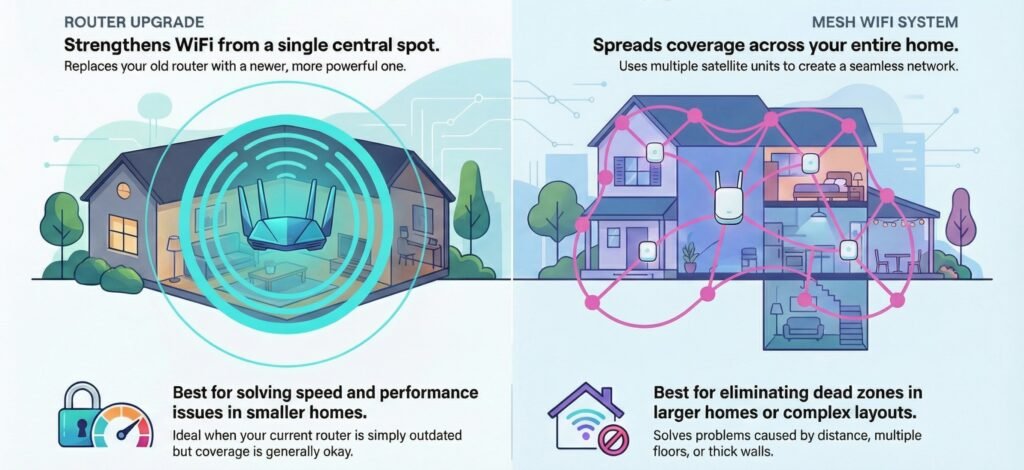
This guide keeps things simple and clear so you can actually pick what works for you. We’ll walk through how both options work, what problems they really solve, and which one might fit your situation best.
Key Takeaways
- Mesh WiFi systems use multiple units to cover big or multi-story homes, while router upgrades boost performance from one spot.
- Your home’s size and layout matter more than specs.
- Either can fix WiFi issues, but the wrong pick wastes money.
What You’re Really Deciding With A Mesh WiFi vs Router Upgrade
You’re not choosing “better WiFi.” You’re choosing what problem you’re fixing first: coverage or performance.
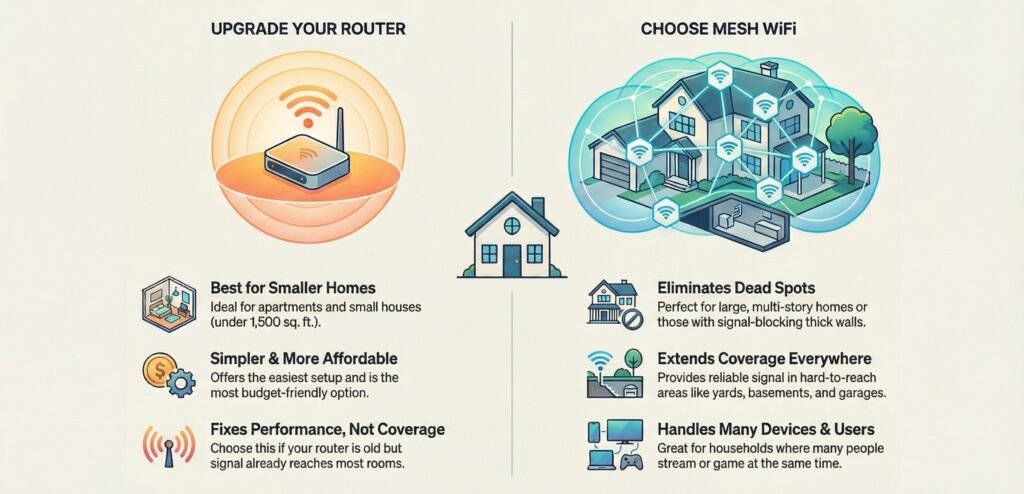
Your home internet feels slow or has dead spots, and you’re stuck figuring out if a mesh WiFi system or just a new router will do the trick. Both cost money and take a little time to set up, but they solve different problems.
Quick Self-Test: Is This A Dead Zone Problem Or A Router Performance Problem?
The big question: is your current router just old and weak, or is your home’s layout causing the problem? If you’re in a smaller place—especially an apartment—and your router is outdated, a router upgrade is often the simplest win.
Mesh tends to win for large homes with thick walls because nodes reduce the distance your signal has to push through. If you keep losing connection when you walk around, mesh nodes can hand off your devices smoothly as you move from room to room.
Also, think about how many gadgets you’ve got connected. Newer routers can handle 20-30 devices, but old ones might choke with just 10. Mesh systems tend to handle more devices better, since they spread the work out.
Your internet speed from your provider matters too. If you’re paying for gigabit but still getting slow speeds, either option might help. Sometimes you have full bars but slow WiFi (performance issue). Other times the signal is weak in specific rooms (coverage issue). It feels the same—until you test it.
Mesh WiFi Or Router Upgrade: Which Is Better For Your Home Type?
Go for a router upgrade if:
- You’re in an apartment or a small house
- Your router is over 3-4 years old
- You already get decent signal in most rooms
- You want the easiest possible setup
- Your budget is tight (good routers run $80-$200)
Pick mesh WiFi if:
- You’ve got a multi-story home over 2,000 square feet
- You have dead spots in certain rooms
- Thick walls or metal block signals
- You want coverage in places like a detached garage or the yard
- Lots of people stream or game at the same time in different parts of the house
Mesh WiFi vs Router Upgrade: Quick Summary For Beginners
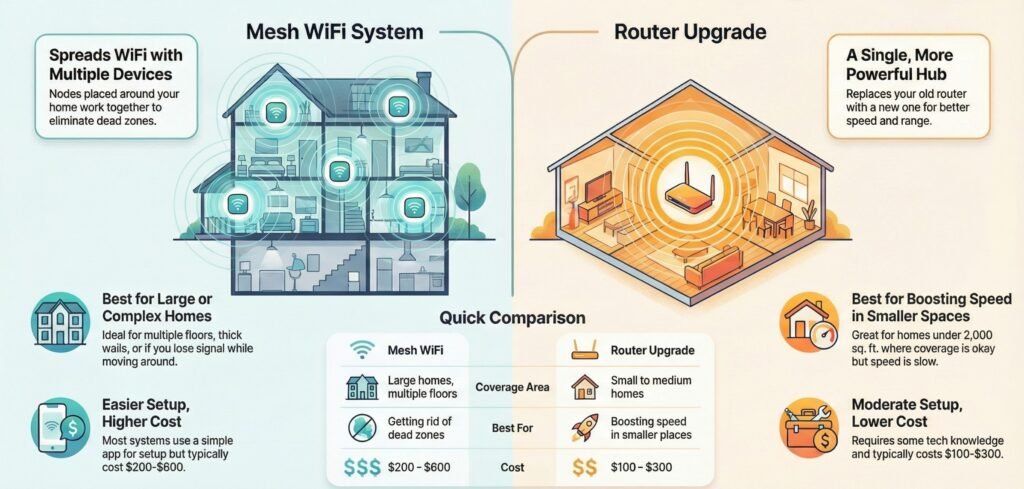
Mesh WiFi spreads your signal out using multiple devices placed around your home. You’ll get strong coverage everywhere—no more dead zones.
Router upgrades mean swapping your old router for a newer, stronger one. It stays in one place, but gives you better speed and range than before.
Here’s what really matters:
Table 1: Mesh WiFi vs Router upgrade (beginner summary)
| Factor | Mesh Wifi | Router Upgrade |
|---|---|---|
| Coverage Area | Large homes, multiple floors | Small to medium homes |
| Setup Difficulty | Easy, app walks you through it | Moderate, a bit of tech know-how helps |
| Cost | $200-$600 for system | $100-$300 for one unit |
| Best For | Getting rid of dead zones | Boosting speed in smaller places |
Below table compares popular mesh kits and router upgrades by home type, device load, and setup ease—so you can pick the right fix without guessing.
Use it as a shortcut: mesh = coverage/roaming, router upgrade = performance from one central spot.
Table 2: Recommended mesh kits and router upgrades (home type + setup ease)
| Product | Type | Best For | WiFi Standard | Coverage Range (sq ft) | Device Load | Setup Ease | More Details & Buy |
|---|---|---|---|---|---|---|---|
| eero 6+ Mesh WiFi System Great “set-it-and-forget-it” whole-home kit | Mesh | Dead zones + easy roaming • Best for beginners | WiFi 6 | Varies by pack | Multi-device homes | Easy | Check On Amazon |
| TP-Link Deco X55 Mesh WiFi 6 System Strong value kit for coverage + stability | Mesh | Dead zones + multi-room coverage • Best value pick | WiFi 6 | Varies by pack | Multi-device homes | Easy | Check On Amazon |
| NETGEAR Orbi RBK752 Mesh WiFi 6 System Premium option for larger homes + stronger backhaul | Mesh | Multi-story + heavier streaming • Best for large homes | WiFi 6 | Varies by kit | High device load | Easy | Check On Amazon |
| ASUS RT-AX88U Pro WiFi 6 Router High-performance single-router upgrade | Router | Speed boost + gaming + control • Best performance router | WiFi 6 | Typical small–medium home | High device capacity | Moderate | Check On Amazon |
| TP-Link Archer AX73 WiFi 6 Router Strong mid-range upgrade for apartments/small homes | Router | Small homes + budget-friendly upgrade • Best for apartments | WiFi 6 | Typical apartment–small home (see listing) | 20+ devices (varies; see listing) | Moderate | Check On Amazon |
| NETGEAR Nighthawk RAX50 WiFi 6 Router Solid router upgrade for speed + stability | Router | Speed boost where coverage is already decent • Best for simple upgrades | WiFi 6 | Typical small–medium home | Multi-device homes | Moderate | Check On Amazon |
Either way, you’ll see a big improvement. The real question is whether you need better coverage or just better performance in the space you already have covered.
How Mesh WiFi And A Router Upgrade Work (Beginner-Friendly)
Here’s the simplest way to picture it: mesh = multiple stations, router upgrade = one stronger station.
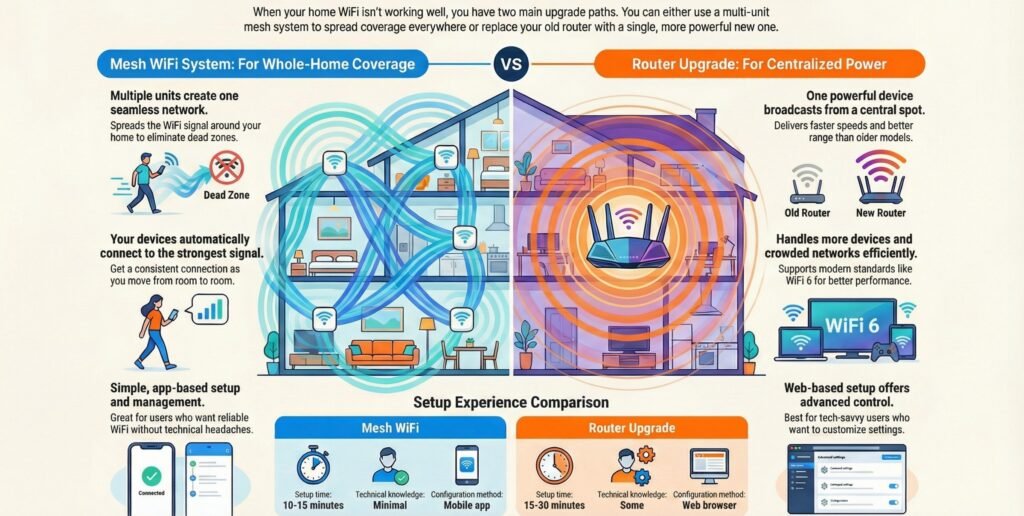
Mesh WiFi systems use a few units spread around your home to create one big network, while a router upgrade is just getting a new, more powerful router to replace your old one. The new router broadcasts from one spot.
Mesh WiFi Explained: The Simple Fix For Dead Zones And Roaming
Best when: your WiFi is fine near the router but collapses in specific rooms (or when you walk around).
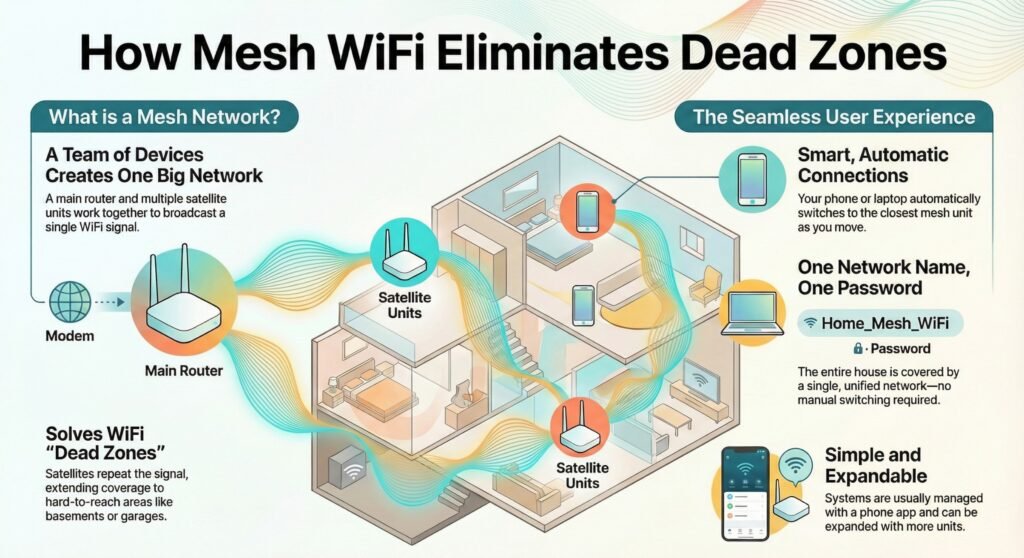
A mesh WiFi setup comes with a main router that plugs into your modem, plus two or more satellites you put in other rooms. They all talk to each other wirelessly and create one seamless network.
As you walk around, your devices automatically connect to the closest mesh unit. You don’t have to switch networks or mess with settings—it just works. The network name and password stay the same everywhere.
Mesh works by passing your data from unit to unit until it gets to the main router. Each one repeats the signal, so you get coverage in places your old router couldn’t reach at all.
Key features:
- Multiple units form one big network
- Your gadgets switch between units automatically
- One network name covers the whole house
- Usually managed with a phone app
Most mesh kits come with two or three units to start. You can add more later if you want coverage in places like the basement or garage.
Router Upgrade Explained: Best When Signal Is Fine But Speed Is Weak
Best when: you already get WiFi in most rooms, but speeds are underwhelming or drop during busy hours.
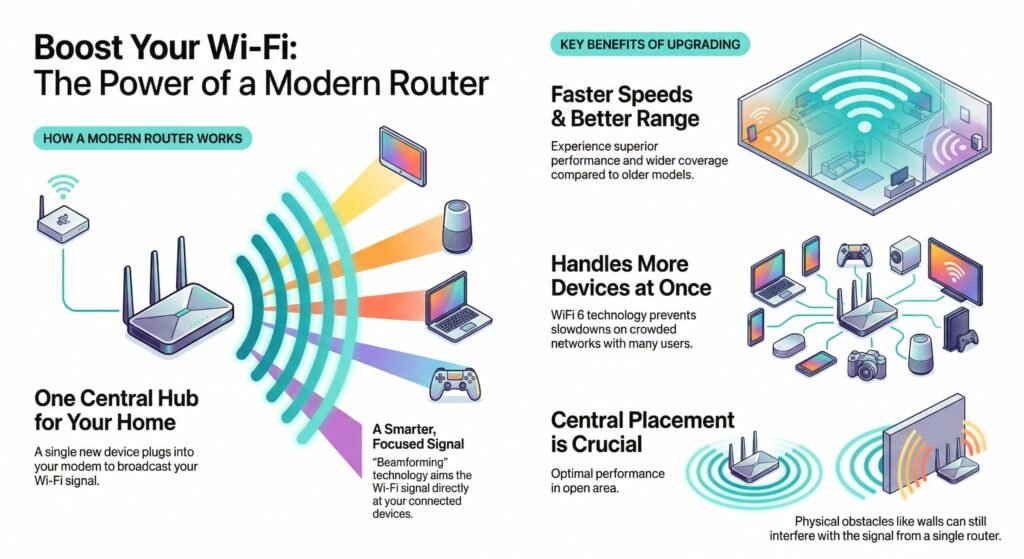
Upgrading your router just means getting a newer, better one to replace your old device. It plugs into your modem and sends out WiFi from one central spot.
New routers give you faster speeds, better range, and improved performance over older models. Many have beamforming, which basically aims the WiFi signal at your devices instead of spraying it everywhere.
The new router can handle more gadgets at once without slowing down. Modern ones support WiFi 6, which is faster and handles crowded networks better—handy if everyone’s streaming or working from home.
What you get:
- One strong device in a central spot
- Better range than old routers
- Handles more devices at once
- Advanced settings for techy folks
Your experience really depends on where you put the router. Walls, floors, and distance still mess with the signal since everything comes from one place.
Setup Differences: Mesh Vs Router Setup Ease For Beginners
Reality check: Mesh is usually “phone-app easy.” A router upgrade is often “browser settings easy… if you’ve done it before.”
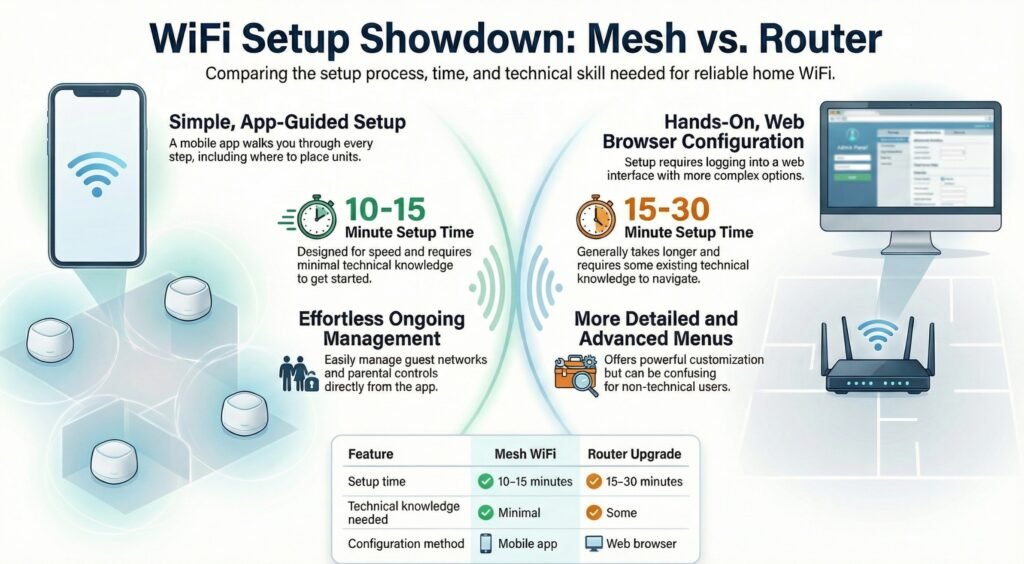
Mesh systems usually walk you through setup with a phone app. Plug in the main unit, download the app, and just follow the steps. The app even helps you figure out where to put the other units.
Most mesh apps have easy controls for guest networks, parental controls, and managing devices. That’s why mesh is popular with beginners who want reliable WiFi without digging through advanced settings.
Router upgrades are a bit more hands-on. You plug it in, then set things up through a web browser. There are usually more advanced options, which is nice if you know what you’re doing, but can be confusing if you don’t.
Table 3: Setup time and difficulty (mesh vs router upgrade)
| Feature | Mesh WiFi | Router Upgrade |
|---|---|---|
| Setup time | 10-15 minutes | 15-30 minutes |
| Technical knowledge needed | Minimal | Some |
| Configuration method | Mobile app | Web browser |
| Ongoing management | Simple app | More detailed menus |
Mesh WiFi Vs Router Upgrade Comparison: Coverage, Speed, Cost
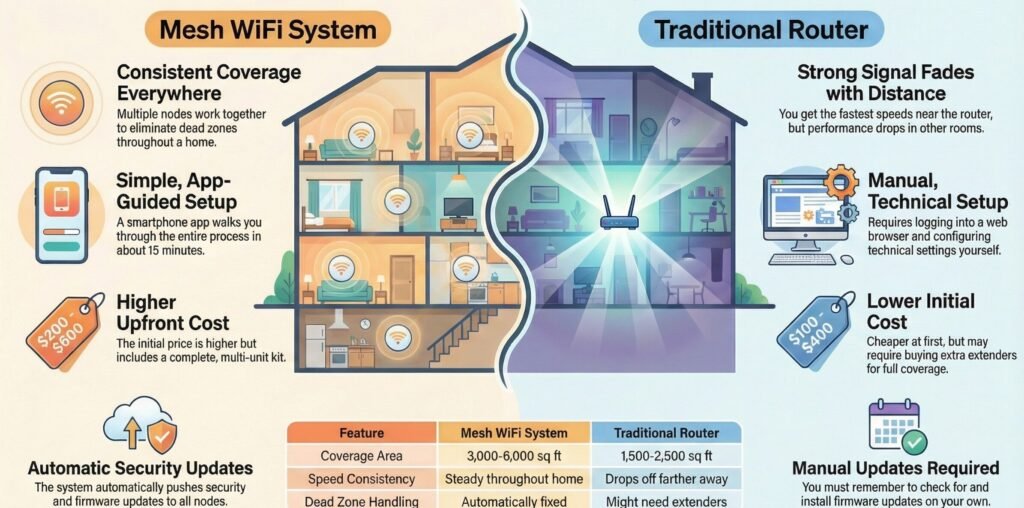
Below is a quick side-by-side breakdown of what changes in real life—coverage consistency, dead zones, roaming, and peak speed. (Cost details are covered in the “Cost Reality Check” section right after.)
Coverage And Speed: What Changes Room To Room?
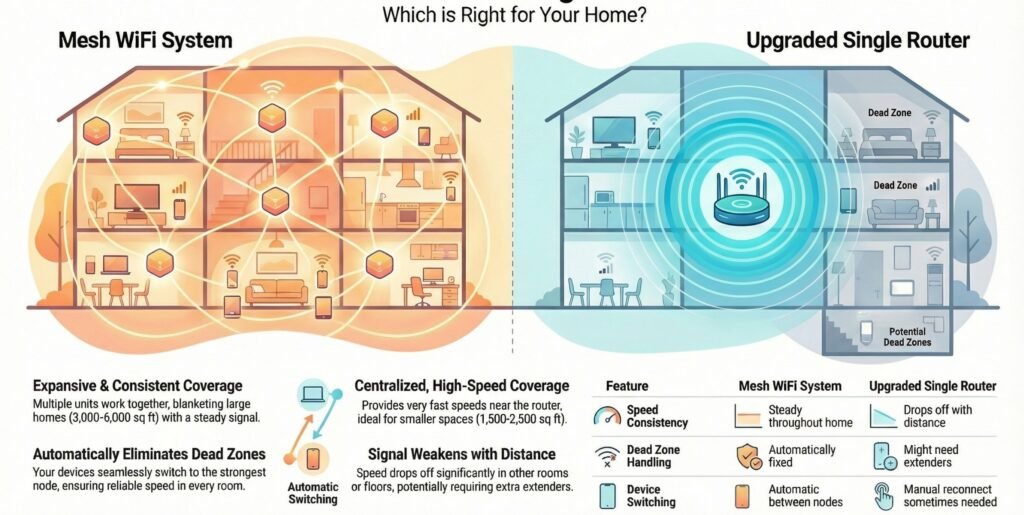
Table 4: Real-life performance differences (coverage, roaming, speed consistency)
| Feature | Mesh WiFi System | Router Upgrade |
|---|---|---|
| Coverage Area | 3,000-6,000 sq ft (multi-unit) | 1,500-2,500 sq ft (single unit) |
| Speed Consistency | Steady throughout home | Drops off as you get farther away |
| Dead Zone Handling | Automatically fixed | Might need extra extenders |
| Device Switching | Automatic between nodes | Manual reconnect sometimes needed |
| Maximum Speed | 300-1200 Mbps per node | 600-3000 Mbps at the router |
Mesh systems keep your speeds consistent because the nodes work together. Your devices always connect to the strongest signal, wherever you are in the house.
With a single upgraded router, you’ll get the fastest speeds right near the device, but it drops off as you move to other rooms or floors.
Cost Reality Check: Mesh Kit Vs Upgraded Router
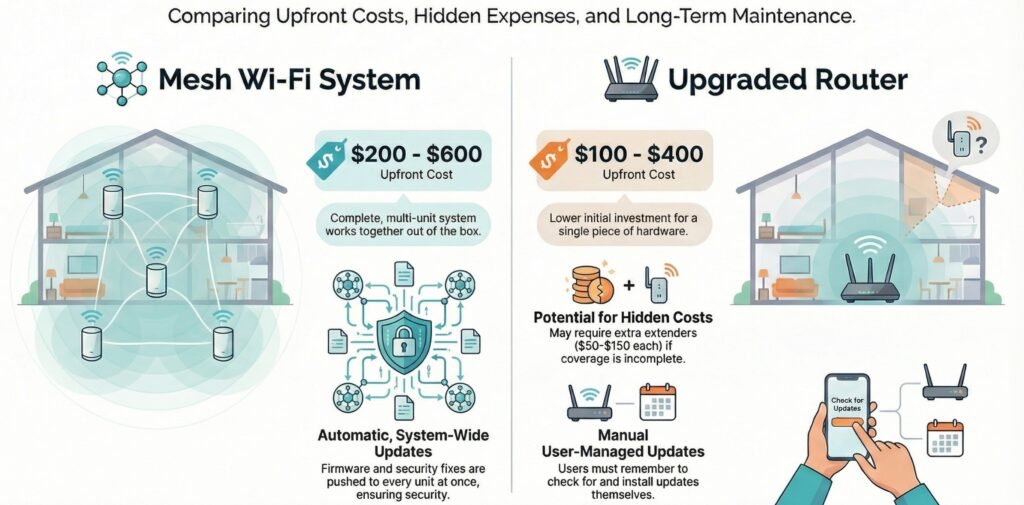
Mesh WiFi systems aren’t cheap up front—you’ll usually spend somewhere between $200 and $600 for a full set. That covers several units that work together right out of the box, so you’re not just buying one device.
Upgrading your router is a bit easier on the wallet at first. Mid-range models start at about $100-150, and high-end ones can hit $300-400. But you’re only paying for one piece of hardware.
But here’s the catch: if your new router can’t reach every corner of your place, you might end up buying extra access points or extenders. Those typically run $50-150 each, and suddenly you’re spending as much as you would’ve on a mesh setup anyway.
One thing mesh systems do well—they push out firmware updates and security fixes to every unit at once. With a regular router, you have to remember to check for updates and handle them yourself, which, honestly, most people forget.
Setup Complexity: Mesh WiFi vs Router Setup Ease for Beginners (What’s Actually Easier?)
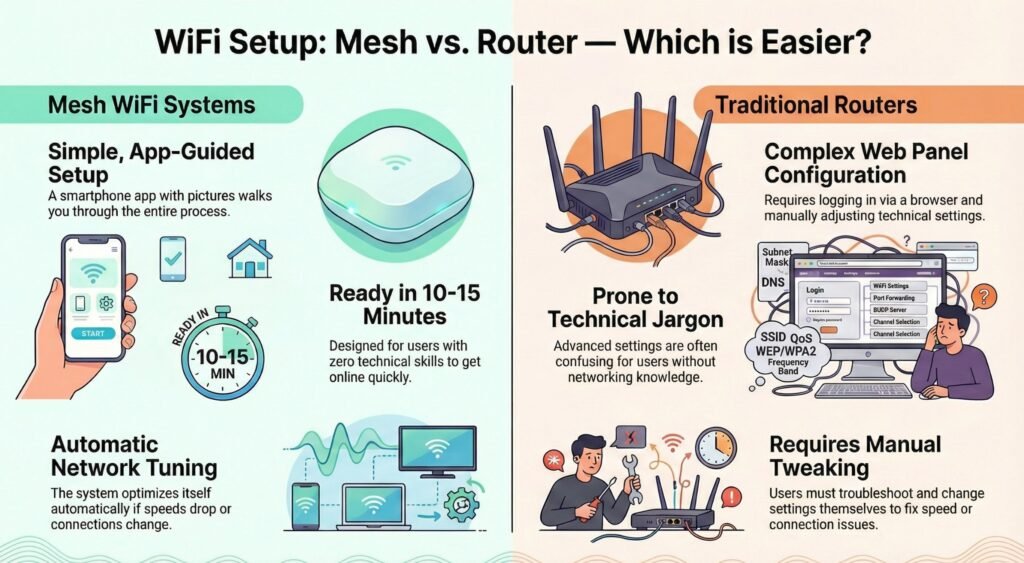
Setup Complexity: Which Is Easier For Beginners?
- Mesh WiFi: app-guided setup (usually 10–15 minutes), beginner-friendly controls, and smoother roaming.
- Router upgrade: browser-based setup (often 15–30 minutes), more settings/control, but more “networking jargon.”
Quick warning (most people miss this):
Mesh nodes must be placed intelligently—if a node is too far from the main unit (or hidden behind thick walls/TV cabinets), your speeds can get worse instead of better.
Mesh WiFi Vs Router Differences: Pros And Cons That Actually Matter
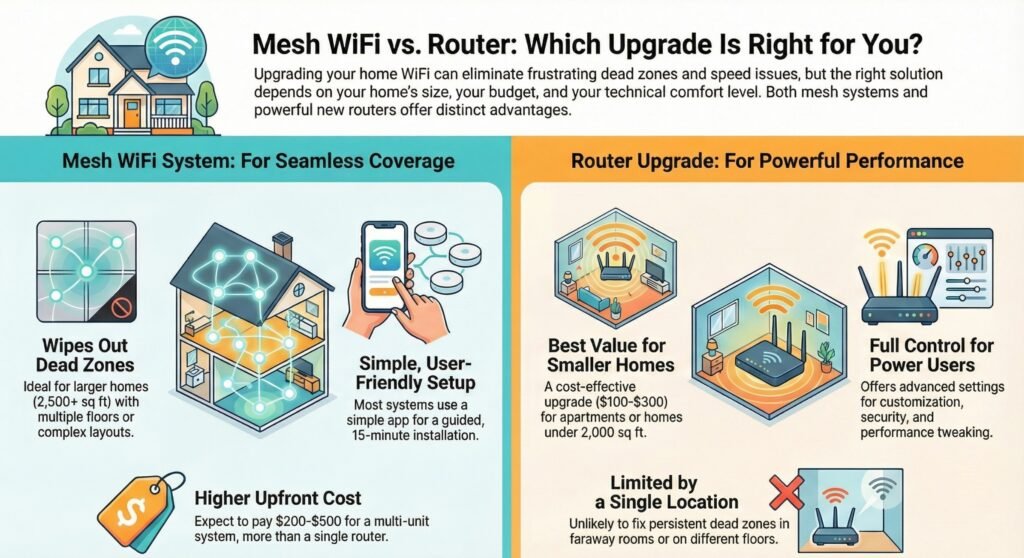
Mesh WiFi and router upgrades both have their perks, but also their downsides. Which one’s right for you? Well, it really depends on your home’s size, your budget, and what’s driving you nuts about your current WiFi.
When Mesh WiFi Wins (And Why)
Mesh WiFi is great at wiping out dead zones. With multiple nodes working together, you get one big, seamless network. You can wander from room to room without your phone or laptop dropping the connection or making you switch networks.
Getting started is easy. You don’t need to be a techie. Most systems walk you through setup with an app, and you’ll be online in under 15 minutes.
Key benefits include:
- Whole-home coverage for bigger spaces (2,500+ square feet)
- Easy to expand—just add another node if you need it
- Single network name so your devices just connect, no fuss
- Better user experience with fewer dropped signals
- Automatic updates to keep things running smoothly
The system actually moves your device to the strongest node as you move around, so you keep a steady connection in every room. Pretty smart, honestly.
When Mesh WiFi Is Overkill (Common Beginner Mistakes)
The price is the main downside. A decent mesh system will set you back $200 to $500, sometimes more. You’re buying several devices, not just one.
Main limitations:
- Higher upfront cost than a single router
- Could get pricey again if you ever have to replace the whole system
- Not a lot of advanced settings for folks who want to tinker
- Possible speed drops as your signal bounces between nodes
- Needs more outlets since each node has to be plugged in
Mesh systems are built for simplicity, not deep customization. If you’re the type who likes to tweak every setting, you might find the controls a bit limited. That smooth setup also means less control overall.
And if you put the nodes in the wrong spots, your speeds might actually get worse. Placement really matters.
When A Router Upgrade Wins (Fastest Value Upgrade)
Upgrading to a single, better router is usually cheaper. Good models run $100 to $300. You just swap out your old one and keep your current setup.
Modern routers are pretty powerful these days. You get faster WiFi, more antennas, and beefier processors. If your router is ancient, a new one can make a huge difference in speed and reliability.
Notable advantages:
- Cheaper upfront if you just want a basic upgrade
- Lots of settings for people who like to customize
- Perfect for apartments or smaller homes (under 2,000 sq ft)
- No extra gadgets cluttering up your rooms
- Works with what you already have
You get full control over your network. Tech-savvy users can tweak channels, set up VLANs, manage quality of service, or beef up security.
Router Upgrade Limits: Where Dead Zones Still Stay
One router can only reach so far. Even the best ones struggle in homes over 2,500 square feet. Walls, floors, and interference all cut down the range.
Primary disadvantages:
- Limited range from one spot
- Dead zones stick around in far-off rooms or on different floors
- No simple way to expand unless you start adding more devices
- Placement is critical—sometimes your ideal spot isn’t practical
- Steeper learning curve for advanced features
If you want top performance, you’ll need to know your way around network settings. Setting up guest networks, parental controls, or QoS? That’s a lot trickier than the plug-and-play mesh options.
And if your home’s layout is the problem, a new router probably won’t fix it. You might get better speeds where the signal already reaches, but don’t expect miracles in rooms that’ve always had weak WiFi.
Best Choice By Home Type: Apartments, Small Houses, Large Homes
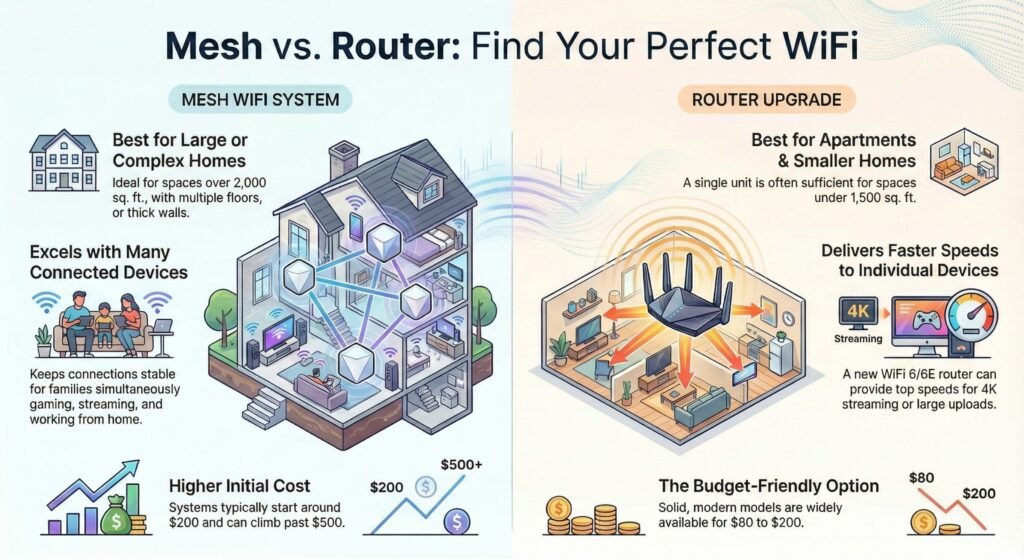
Your home’s size, how you use the internet, and your budget all matter when deciding upgrade router or get mesh wifi for apartment setups versus larger homes. Sometimes, the right answer is obvious—other times, it’s not so clear.
Mesh WiFi Vs Router For Large Homes With Thick Walls Vs Apartments
Mesh WiFi shines in homes over 2,000 square feet or places with more than one floor. Spreading nodes around kills dead zones a single router can’t touch. If you’ve got rooms where WiFi drops or crawls, mesh is the direct fix.
If you’re in a small house and already get decent coverage, it’s fair to ask: is mesh wifi worth it for small house—or is a router upgrade the smarter first step? One good router usually covers everything. You’ll save money and setup is simpler.
Table 5: Best mesh WiFi systems for large homes and thick walls (Amazon picks)
| Mesh System | Best For Large Homes Because… | Coverage | Bands (Dual/Tri-band) | Ethernet Backhaul Option | More Details & Buy |
|---|---|---|---|---|---|
| NETGEAR Orbi RBK752 Strong whole-home kit for multi-floor coverage Best For Multi-Story | Handles roaming well across floors, helps push signal through thick walls, and keeps coverage consistent when you move room-to-room. | up to 5,000 sq. ft., 40 Devices | Tri-band (typical) | Yes | Check On Amazon |
| ASUS ZenWiFi Great pick if you want strong control + expansion Best For Thick Walls | Great for larger layouts where you want stable roaming plus the flexibility to expand with extra nodes later. | up to 5700 sq ft & 6+ Rooms | Varies by model (Dual/Tri-band) | Yes | Check On Amazon |
| eero Pro 6E Mesh WiFi System Fast premium mesh with WiFi 6E support Best Premium Pick | Ideal for big homes that need smooth roaming and strong stability under heavy streaming/gaming load—plus 6E capability where supported. | up to 4,000 sq. ft. | Tri-band | Yes | Check On Amazon |
But thick walls, concrete, or old construction change things. A 1,200 square foot house with solid walls might need mesh, while a 2,500 square foot open floor plan could get by with just a router.
Table 6: Best routers for apartments and small homes (Amazon picks)
| Router | Best For Apartments Because… | WiFi Standard | Speed Tier (AX####) | Coverage | Ports | More Details & Buy |
|---|---|---|---|---|---|---|
| TP-Link Archer AX73 Great value single-router upgrade for small spaces Best For Apartments | Strong single-point coverage in compact layouts; ideal when your signal reaches everywhere but feels slow or unstable. | WiFi 6 | AX5400 (typical) | Apartment / small home (Long Range Coverage with 6x Antennas) | 1× WAN + 4× LAN (typical) | Check On Amazon |
| ASUS RT-AX88U Pro High-performance router when you want speed + control Best Performance | Excellent for small homes where you want maximum speed near the router plus stronger stability for gaming, streaming, and work. | WiFi 6 | AX6000 (typical) | Small to medium home (WiFi coverage will vary from network conditions and environmental factors) | 1× WAN + multiple LAN (varies) | Check On Amazon |
| TP-Link Archer AXE75 WiFi 6E upgrade for less congestion (where supported) Best WiFi 6E Value | Great for apartments with crowded WiFi nearby—6E can help reduce interference when your devices support it. | WiFi 6E | AXE5400 (typical) | Apartment / small home (Strong coverage with high 6x Antennas) | 1× WAN + 4× LAN (typical) | Check On Amazon |
| Linksys Hydra Pro 6E Simple 6E router upgrade with strong single-point signal Best Simple 6E Pick | Good for small homes that want a straightforward router upgrade with strong coverage from one central spot. | WiFi 6E | AXE6600 (typical) | Small to medium home (sCoverage up to 2700 sq. ft., 55+ devices) | WAN + multiple LAN (varies) | Check On Amazon |
Streaming And Gaming: Mesh WiFi Vs Router For Many Devices
Homes packed with connected devices really benefit from mesh systems. If you’ve got a bunch of people streaming, gaming, or on Zoom at the same time, mesh handles the load better. Each node manages its own chunk of devices, so nothing gets overloaded.
Heavy streamers and remote workers care more about steady speeds than just coverage. A new router with WiFi 6 or 6E can actually deliver faster speeds to each device than some older mesh kits. That’s a big deal if you’re uploading big files or watching 4K video.
If your family’s got kids doing homework online while parents work from home, stability matters more than blazing speed. Mesh keeps connections from dropping during important calls or classes.
Table 7: Streaming & gaming scenarios (mesh vs router for many devices)
| Use Case | Best Choice | Why It Wins (Real-Life) | What To Check First | Fast Fix / Setup Tip |
|---|---|---|---|---|
| Multiple people streaming in different rooms Netflix/YouTube/4K TV + phones + smart devices | Mesh WiFi Best for multi-room |
Keeps signal strong across rooms so streams don’t collapse when you move farther from the router.
|
|
Place the first node in line-of-sight (or one wall away) from the main unit for best stability. |
| Competitive gaming + streaming near the router PC/console close to router, low latency matters | Router Upgrade Best performance |
A strong single router can deliver higher peak speed and lower latency when your gaming setup is nearby.
|
|
For gaming rigs, use Ethernet if possible—wired beats any WiFi option for stability and ping. |
| Gaming in a far room / upstairs Console or PC where WiFi signal is weak | Mesh WiFi Best coverage |
A nearby node reduces distance + walls between your device and the network, cutting dropouts and lag spikes.
|
|
If your mesh supports it, use Ethernet backhaul for the node feeding the gaming room (best stability). |
| Zoom/Work calls + kids streaming Stability matters more than top speed | Mesh WiFi Best stability |
Mesh helps keep a steady connection across the house, reducing call drops when others are streaming.
|
|
Put the main mesh unit in the most central open spot you can (not inside cabinets). |
| Tons of smart-home devices (cameras, plugs, bulbs) Many always-on devices spread across rooms | Mesh WiFi Best for spread-out devices |
Devices connect to closer nodes instead of fighting a weak signal from one router across the whole house.
|
|
Keep 2.4 GHz enabled for older smart devices; don’t force everything onto 5 GHz/6 GHz only. |
| Crowded apartment WiFi (neighbor interference) Many networks nearby, congestion issues | Router Upgrade Depends |
A newer router (WiFi 6/6E) can handle congestion better, but it won’t fix a weak internet plan.
|
|
If your devices support it, use the less-crowded band (5 GHz / 6 GHz) for streaming and work. |
Tip: If your gaming/TV gear can be wired (Ethernet), do it—wired is the biggest “instant upgrade” for stability.
Budget Pick: Upgrade Router Or Get Mesh WiFi First?
Router upgrades run $80 to $200 for a solid model, so they’re easier on your wallet if you just want better WiFi. There are plenty of good WiFi 6 routers that can handle 20+ devices without sweating.
Mesh systems start around $200 for two nodes and can climb to $500+ for bigger kits. That extra cash only makes sense if you really need the extra coverage. Don’t buy mesh just because it’s the latest thing—a router might do just fine.
Table 8: Budget-first decision guide (what to buy first and why)
| Budget Scenario | Best First Move | Typical Cost Range | What You Actually Get | Hidden Costs / Gotchas | Best For |
|---|---|---|---|---|---|
| Small place + router is old Apartment / small house, WiFi is “meh” everywhere | Upgrade router first |
$80–$200 solid WiFi 6 routers often sit here |
|
|
Beginners who want the fastest value upgrade |
| Dead zone in one room only Garage / back bedroom / far corner drops badly | Try a targeted fix first extender, powerline, or MoCA |
$25–$150 depends on extender vs powerline/MoCA |
|
|
Budget-limited users with a single problem room |
| Multiple dead zones + more than one floor WiFi collapses in several rooms or upstairs | Mesh WiFi first |
$200–$600 2–3 nodes for most homes |
|
|
Families, multi-story homes, thick walls, roaming issues |
| Coverage is fine, but WiFi slows at busy hours Full bars, yet buffering / lag / dropouts under load | Upgrade router first |
$120–$300 stronger CPU, better radios, WiFi 6/6E |
|
|
Gamers, streamers, WFH users who already have decent coverage |
Tip: If you’re unsure, start with the cheaper move (router upgrade or targeted fix). If dead zones remain in multiple rooms, that’s when mesh becomes worth the spend.
Common Myths That Push People Into The Wrong Upgrade
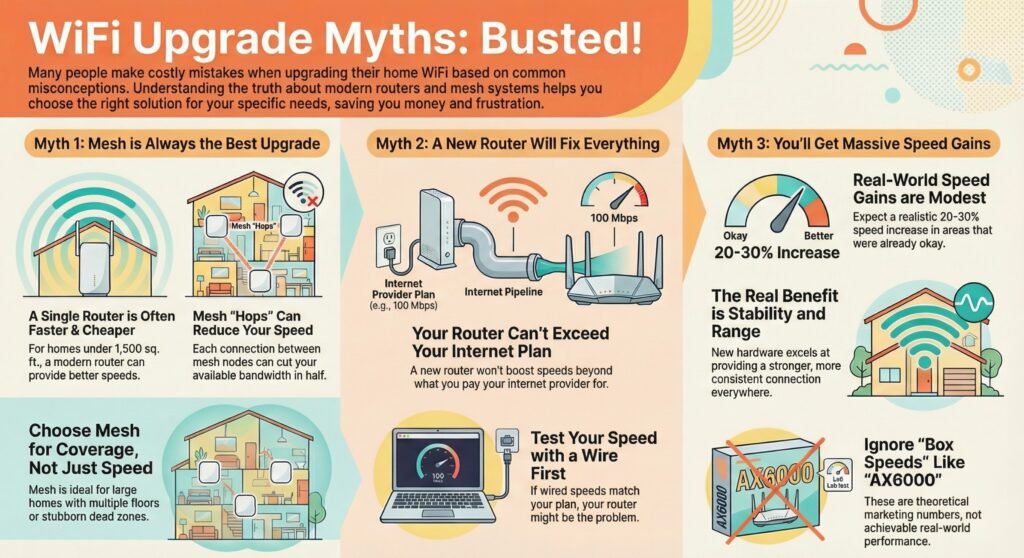
Most people upgrade WiFi based on assumptions that sound true… until they spend money and still have dead zones or slow speeds. Here are the three myths that push people into the wrong upgrade—plus what to do instead.
TL;DR (Read This First)
- Mesh isn’t always faster → it’s mainly for better coverage + roaming.
- A new router can’t beat your internet plan → it can only improve your WiFi delivery.
- Real wins = stability + fewer dropouts → not “5× faster everywhere.”
Myth 1: Mesh WiFi is always better than a router upgrade
Myth: “If my WiFi is bad, mesh WiFi will automatically fix it (and be faster).”
Reality: Mesh is best for coverage problems (dead zones). A strong router upgrade often wins in small homes for speed/value.
What to do:
- Choose mesh WiFi if WiFi drops in specific rooms, upstairs, or behind thick walls.
- Upgrade your router if coverage is mostly fine but speeds feel weak, especially on an old router.
Myth 2: A new router fixes every WiFi problem
Myth: “If I buy a newer router, my internet will become faster everywhere.”
Reality: A router upgrade can’t exceed your internet plan—and it won’t magically remove interference or fix provider congestion.
What to do:
- Run a wired speed test (Ethernet). If it’s slow there too, the problem is your plan/provider.
- If wired speed is good but WiFi is bad, then a router upgrade or mesh WiFi can help (depending on dead zones).
Myth 3: You’ll get massive speed gains everywhere
Myth: “New gear means my whole home will be 5× faster.”
Reality: Most upgrades deliver more consistent speed, better range, and fewer dropouts—not huge jumps in every room.
What to do:
- Focus on your real goal: coverage (mesh) vs performance (router upgrade).
- Ignore “box speeds” and look for stability features (better radios, WiFi 6/6E, QoS, good placement).
Other Fixes If You Don’t Want Full Mesh Or A Router Upgrade
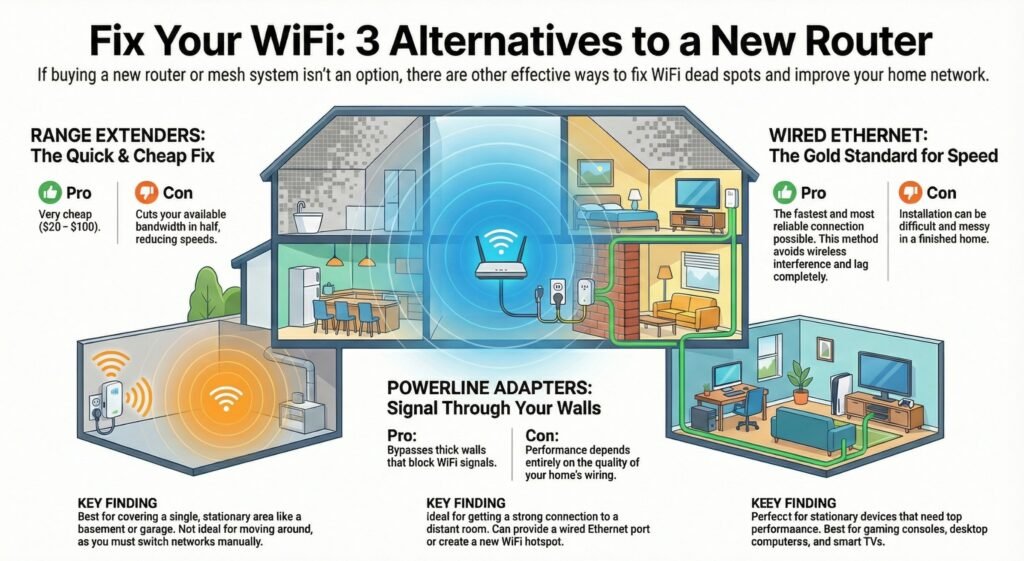
If mesh and router upgrades aren’t quite right, there are other ways to boost your WiFi without replacing everything. These options work best for specific problems and can save you some hassle (and cash).
Table 9: Alternatives to mesh or router upgrade (targeted fixes)
| Alternative Fix | Best For | Speed Impact (Low / Medium / High) | Downside | More Details & Buy |
|---|---|---|---|---|
| TP-Link RE715X WiFi 6 Range Extender Quick way to push signal into one weak room | Fixing a single dead spot (garage room, back bedroom) when you don’t need whole-home mesh. | Medium | Can cut speeds in the extended area and may create a separate network or less seamless roaming (varies by setup). | Check On Amazon |
| TP-Link AV2000 Powerline Adapter Kit (TL-PA9020P KIT) Internet through electrical wiring (ethernet-style stability) | Getting a stable connection to a far room when WiFi struggles through thick walls. | High | Performance depends on your home’s wiring quality; best when outlets are on the same circuit. | Check On Amazon |
| ScreenBeam MoCA Adapter (Coax To Ethernet) Uses existing coax lines for fast, reliable wired networking | Homes/apartments with coax outlets where you want near-ethernet performance without running new cables. | High | Requires coax wiring and compatible setup; may need a MoCA filter depending on your internet/cable layout. | Check On Amazon |
| TP-Link 8-Port Gigabit Switch (TL-SG108) Adds more wired ports for TVs, consoles, PCs, hubs | Expanding wired connections near your router (or a powerline/MoCA endpoint) for maximum stability. | High | Not a WiFi fix by itself—you still need a wired feed (router/MoCA/powerline) to connect into the switch. | Check On Amazon |
“Speed Impact” reflects typical real-world results; exact performance varies by wiring, placement, and interference.
Range Extenders: Cheap Coverage, With Tradeoffs
Range extenders are simple plug-in gadgets that rebroadcast your router’s signal to weak spots. They set up a separate network name, so you’ll have to switch manually as you move around.
They’re cheap—usually $20 to $100—and can help if you just need to cover a single room, like a basement or garage. But, they cut your bandwidth in half since they’re receiving and sending data on the same channel, so speeds will drop in those extended areas.
If you stay in one spot, extenders are fine. But if you’re always moving around the house, your devices won’t switch networks automatically. Newer extenders are a bit better, but mesh still wins for seamless roaming.
Powerline Adapters: Better Signal Through Wiring
Powerline adapters move internet signals through your home’s electrical wiring instead of WiFi. You plug one in near your router (with an ethernet cable), and another wherever you need a better connection.
Starter kits run $50 to $150, and they work even if you’ve got thick walls or long distances. But the quality of your home’s wiring really matters—older homes might see inconsistent speeds.
They’re great for getting a wired connection to a far-off room. Some powerline kits even add WiFi in that spot. Just remember, both adapters need to be on the same electrical circuit, and plugging them into power strips or surge protectors can mess with the signal.
Ethernet And Hybrid Setups: The Most Reliable Option
If you want the fastest and most reliable connection possible, running ethernet cables straight to your devices is still the way to go. Wired connections just dodge all the wireless headaches—no interference, less lag, and you don’t have to share bandwidth with the whole house.
Getting a pro to install ethernet usually runs $50 to $100 for each cable drop, but if you’re handy, doing it yourself can save a lot. Desktops, gaming consoles, and smart TVs are the biggest winners with wired setups since they stay put and often need more speed anyway.
You don’t have to pick just one method, either. Some folks run cables to a few important spots, then add wireless access points. This hybrid setup gives you coverage kind of like mesh, but usually for less money. The catch? It takes time and, honestly, hiding cables in finished homes can be a pain.
Final Verdict: Mesh WiFi vs Router Upgrade—Which One Should You Do First?
If you’re still torn in the mesh wifi vs router upgrade decision, use this rule: try the cheaper fix first—unless you clearly have mesh wifi or router upgrade for dead zones across multiple rooms.
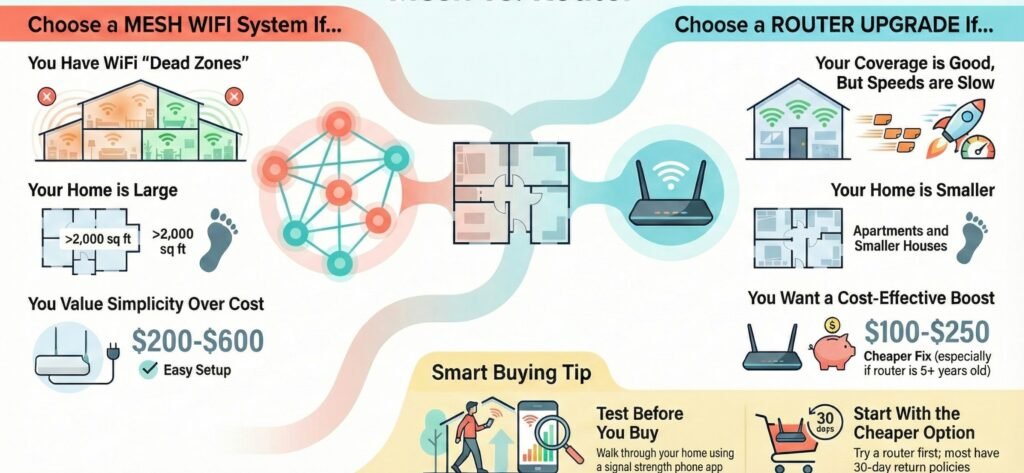
There’s really no one-size-fits-all answer here. Deciding between mesh wifi and a router upgrade depends on your home’s layout and whatever’s bugging you with your current setup.
Choose mesh wifi if you:
- Deal with dead zones in several rooms or on different floors
- Live in a place bigger than 2,000 square feet
- Just want a simple setup and don’t want to mess with tech stuff
- Need steady wifi everywhere—upstairs, downstairs, maybe even outside
- Don’t mind spending $200-$600 for the whole system
Choose a router upgrade if you:
- Have slow speeds, but coverage is fine in every room
- Live in a smaller house or apartment
- Your router is five years old (or older)
- Want better performance for $100-$250
- Feel okay tweaking a few settings yourself
Honestly, start by testing what you’ve already got. Walk around your home with your phone, checking the wifi bars in each room. If you’ve got full bars everywhere but things still crawl, a new router might fix it. If you keep losing signal or see weak spots, mesh wifi could be your answer.
It’s not a bad idea to try a router upgrade first since it’s cheaper. If you still have dead zones after that, you’ll know mesh is worth it. Most decent routers and mesh kits have 30-day return policies, so you can test them out in your own space.
Try not to get swept up by marketing hype. Focus on the problem you want to solve, not just what’s shiny or expensive. The right fix for your situation matters way more than grabbing the latest gadget.
Mesh WiFi Vs Router Upgrade FAQ: Quick Answers For Beginners
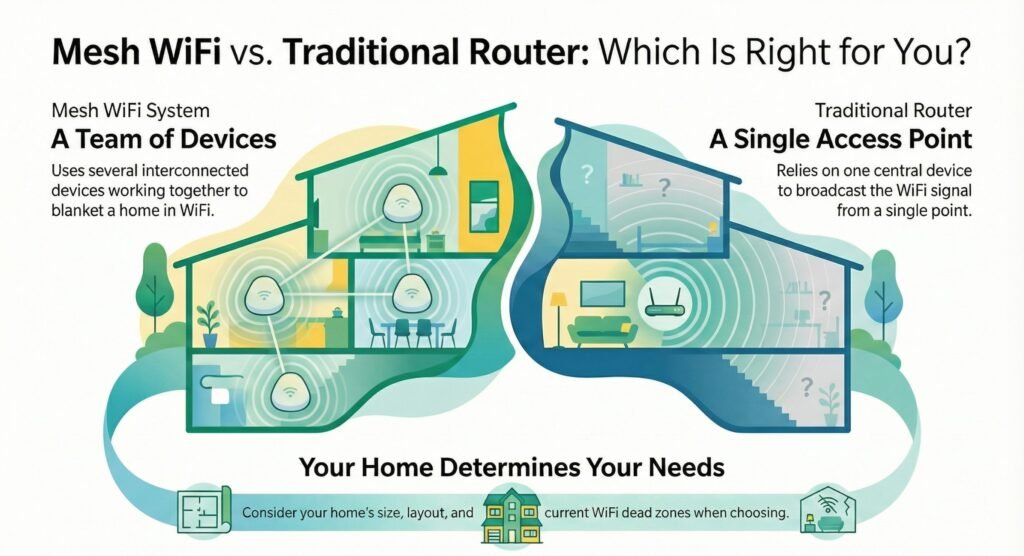
Mesh WiFi systems use several devices working together, while traditional routers are just a single access point. What’s best really depends on your home’s size, layout, and the problems you’re facing.
Mesh WiFi vs router upgrade: which should I try first?
If coverage is good everywhere but WiFi is slow, try a router upgrade first. If you have dead zones in multiple rooms, mesh is usually the faster fix.
What’s the easiest choice for an apartment?
For most small layouts, a strong router upgrade is simpler and cheaper. Mesh is only worth it if you have stubborn dead zones.
Is mesh wifi worth it for small house, or should I just upgrade my router first?
Usually only if you have thick walls, multiple floors, or WiFi drops in far rooms. Otherwise, a router upgrade is often enough.
How do I decide if this is a dead zone problem?
Do a quick walk test: if speeds collapse in certain rooms, you’re dealing with coverage. That points to mesh WiFi or a targeted alternative (like MoCA/powerline).
Which is better for many devices—mesh or router?
If devices are spread across rooms (TVs, cameras, consoles), mesh can keep connections steadier. If everything is close to the router, a strong router upgrade can handle many devices well.