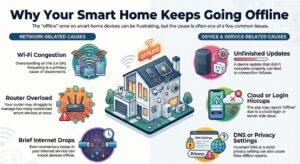
As an Amazon Associate, we may earn a commission if you make a purchase — at no extra cost to you.
Alexa Not Discovering Devices: Step-by-Step Fixes for Beginners
Trying to add a smart bulb, plug, or thermostat, but Alexa not discovering devices no matter how many times you tap “Discover”? This is one of the most common smart home setup problems—especially when the device works in its own app but is a smart device not showing in the Alexa app. In most cases, discovery fails for a few predictable reasons: your Echo and device aren’t on the same Wi-Fi, the device isn’t connecting properly during setup, it isn’t in pairing mode, or the Alexa skill/account link needs a refresh.
This beginner-friendly guide walks you through the fastest fixes first, then the deeper resets only if needed. Follow the steps in order and you’ll usually restore discovery without guessing, reinstalling everything, or doing unnecessary resets.
Key Takeaways
- Most Alexa discovery fails happen because devices are on different Wi-Fi or using the wrong frequency band.
- Going through troubleshooting steps in order—from easy fixes to factory resets—solves most problems.
- Some older or off-brand devices just won’t work with Alexa, plain and simple.
What Problem This Solves
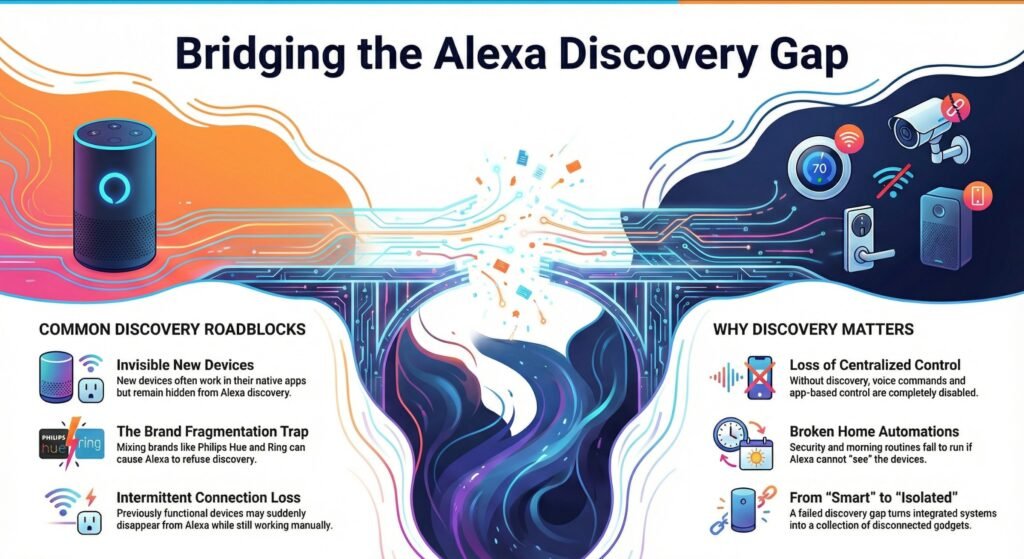
If Alexa cant find smart devices, they may never appear for routines—or the smart device not showing in Alexa app issue keeps coming back.
Common Signs Alexa Can’t Find Smart Devices
You buy new smart bulbs, but Alexa won’t discover smart bulbs even after multiple scans—so they feel invisible in the Alexa app. Happens all the time, especially if you’re new to this stuff.
Or maybe Alexa not finding smart plugs today even though they worked yesterday—manual control still works, but Alexa acts like they disappeared. You can still turn them on and off manually, but voice control? Nope. Some folks run into trouble adding a second Echo—suddenly, it can’t see devices the first Echo controls just fine.
Mixing brands can make things worse. You might have Philips Hue lights, TP-Link plugs, and a Ring doorbell, and Alexa just refuses to find any of them. Each device works in its own app, but Alexa discovery just won’t cooperate.
Why Device Discovery Matters in Smart Homes
If Alexa can’t find your devices, all those smart products turn into regular ones. Try to say “Alexa, turn off the bedroom lights,” and you’ll just get an error. Routines for morning coffee or evening security? They won’t run if Alexa doesn’t see the devices.
Device discovery is what ties your smart home setup together. Without it, you lose all the automation and convenience you probably bought this stuff for in the first place. When devices don’t talk to each other, your “smart home” is really just a bunch of isolated gadgets.
In a hurry? Jump to Step 1–6 below and follow the order—most discovery problems are fixed before you reach resets.
How Alexa Device Discovery Works (So You Know What’s Failing)
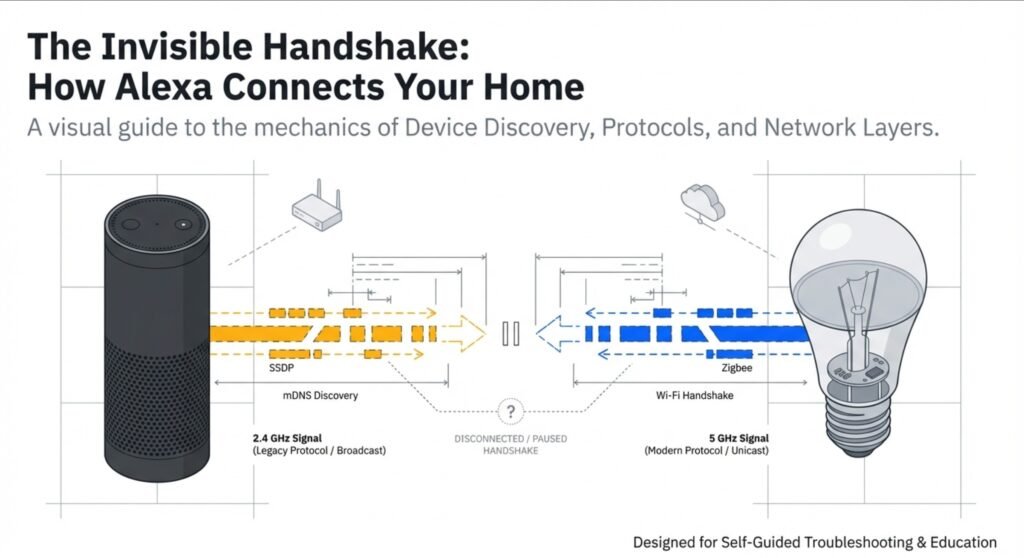
Alexa ‘discovers’ devices by finding them on your home network during setup. If nothing shows up, either the device isn’t ready to be found—or something on the network is blocking the handshake.
How Alexa Discovers Smart Devices
When you add a new smart device, Alexa searches for it using certain wireless protocols. Most use Wi-Fi to talk to Alexa over your home network. Others use Zigbee or Bluetooth, but those need a compatible Echo with a built-in hub.
Discovery kicks off when you open the Alexa app and tap “Add Device.” Alexa sends out a signal looking for devices in pairing mode. If your device is ready, it answers back. When things are working, this takes just a few seconds.
Your device has to be powered on and in pairing mode during this. Most smart plugs, bulbs, and switches go into pairing mode when you plug them in for the first time—they’ll blink fast to show they’re ready.
Role of Wi-Fi Networks and Smart Hubs
Alexa needs everything on the same Wi-Fi network as your Echo. If your phone is on a different network or using mobile data during setup, discovery will fail.
If Alexa not finding devices on wifi, confirm your Echo and the device are on the same network. If discovery keeps failing, band mismatch during setup can also block detection.
Smart hubs act as go-betweens for devices that don’t use Wi-Fi. For example, a Philips Hue bridge connects your bulbs to the router so Alexa can control them.
Step-by-Step: Fix “Alexa Not Finding Devices on Wi-Fi”
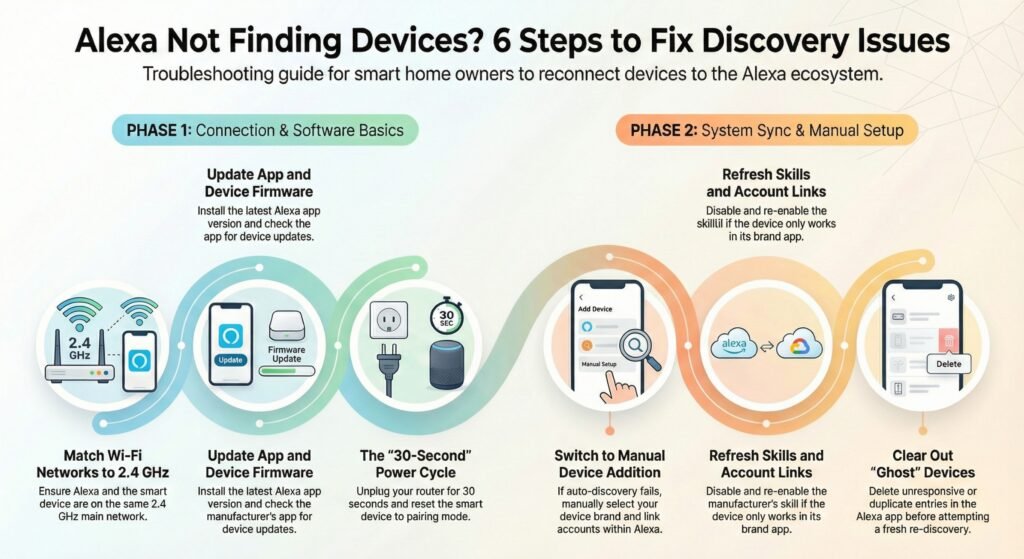
Most discovery problems are about network hiccups, old software, or devices that aren’t set up right. Working through these steps—one by one—usually gets things back on track.
Step 1: Confirm Power + Same Wi-Fi Network (2.4 GHz First)
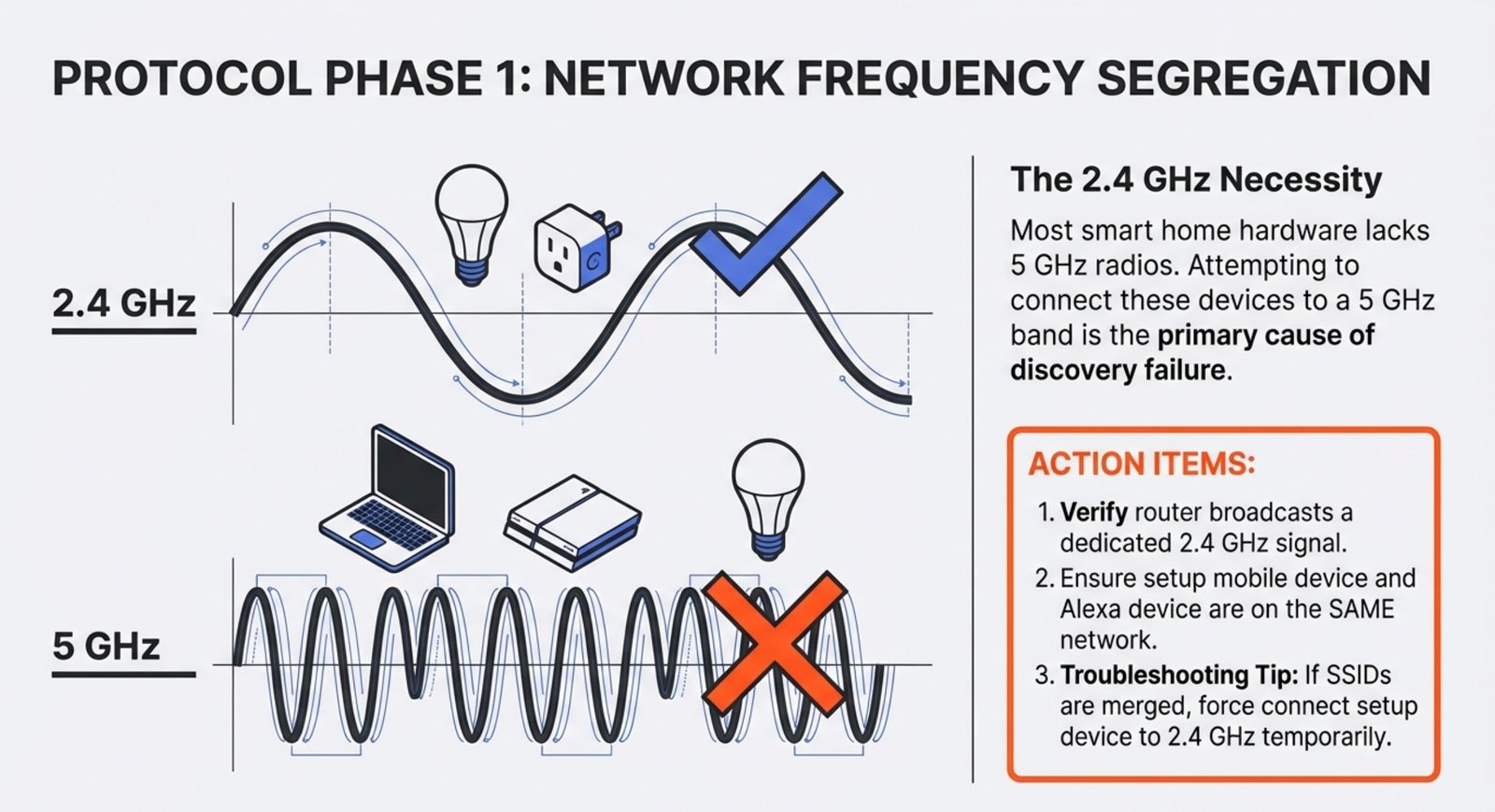

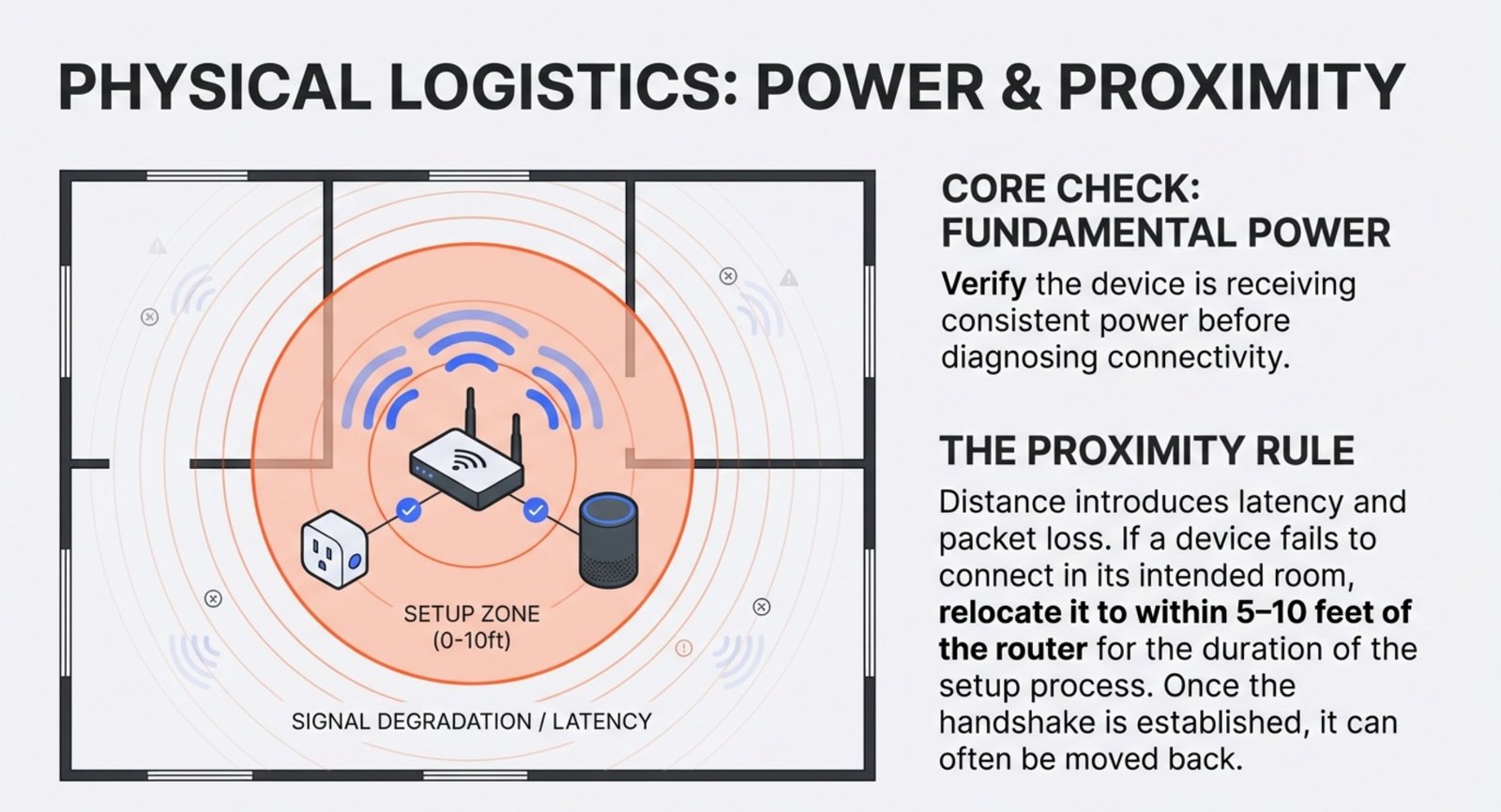
First, make sure everything has power and is on the same Wi-Fi as your Alexa device. For setup, many smart gadgets work best on 2.4 GHz.
Check your router’s network name and password. If you’ve got different names for 2.4 and 5 GHz, connect both Alexa and your device to 2.4 GHz. Guest networks and VPNs can mess things up, so stick to your main network.
Distance can be an issue too. If your device is far from the router, it might not connect well. Bringing it closer during setup often helps.
Step 2: Update Alexa App + Device Firmware (Stops Discovery Bugs)
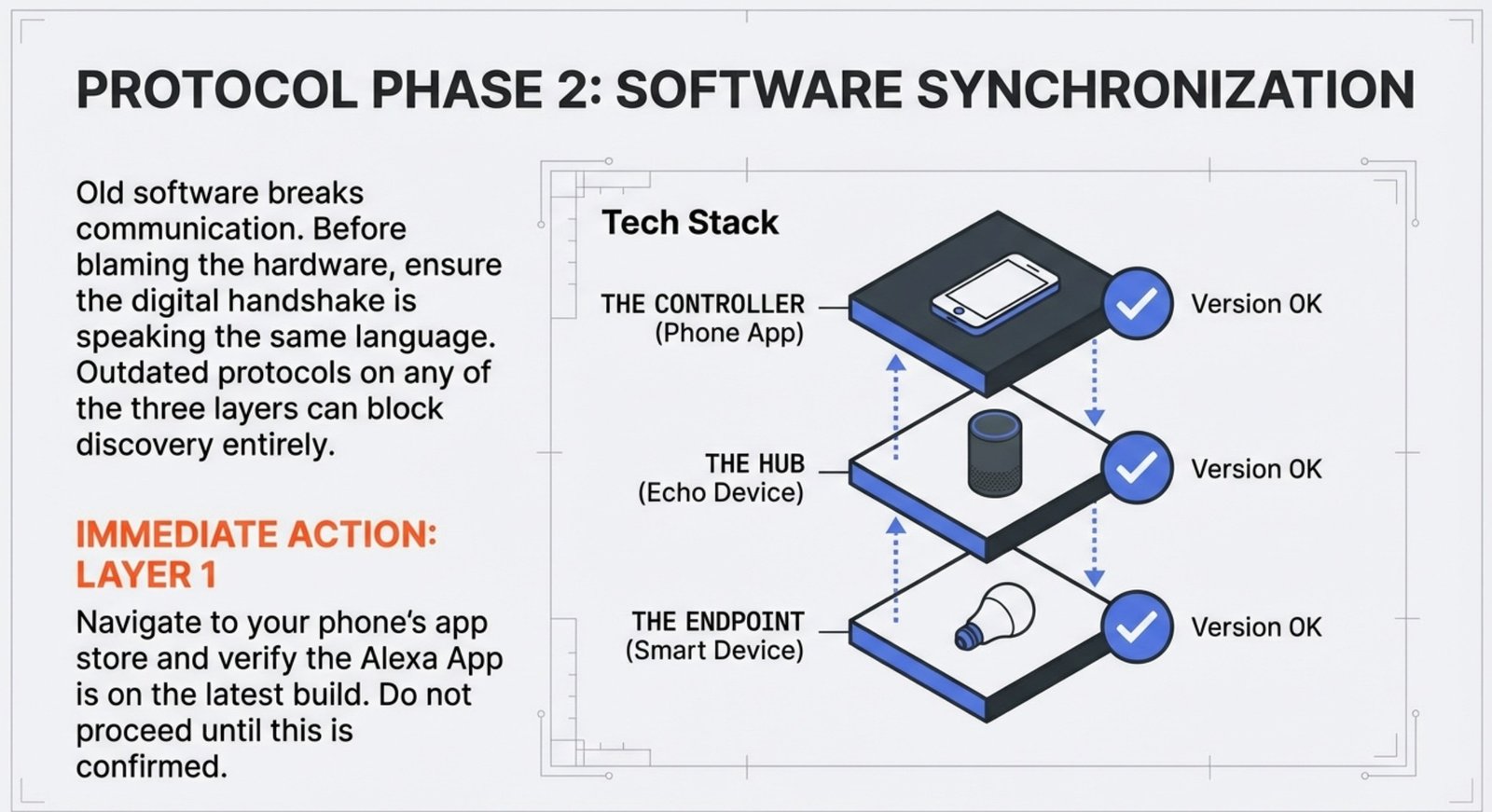
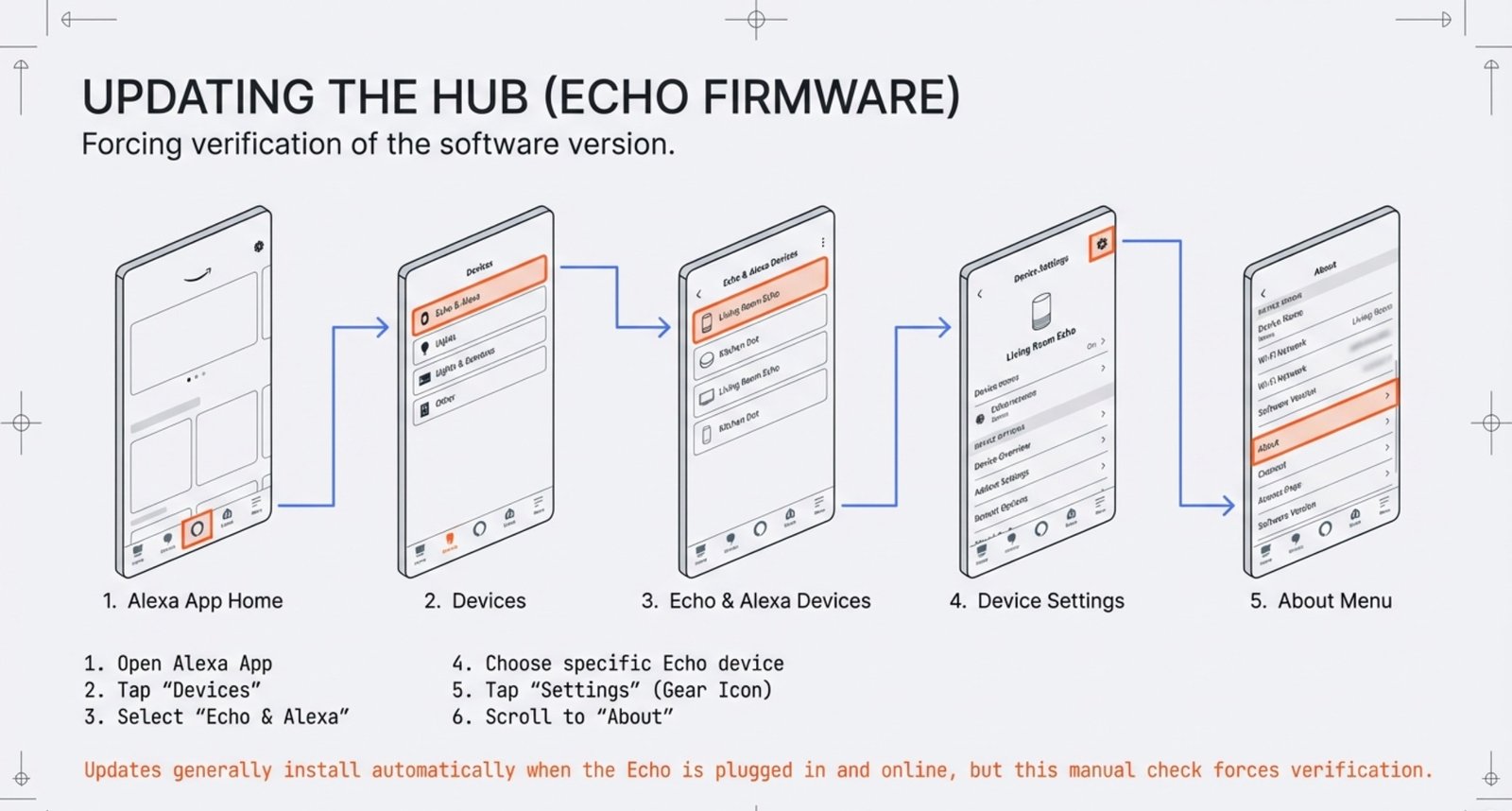
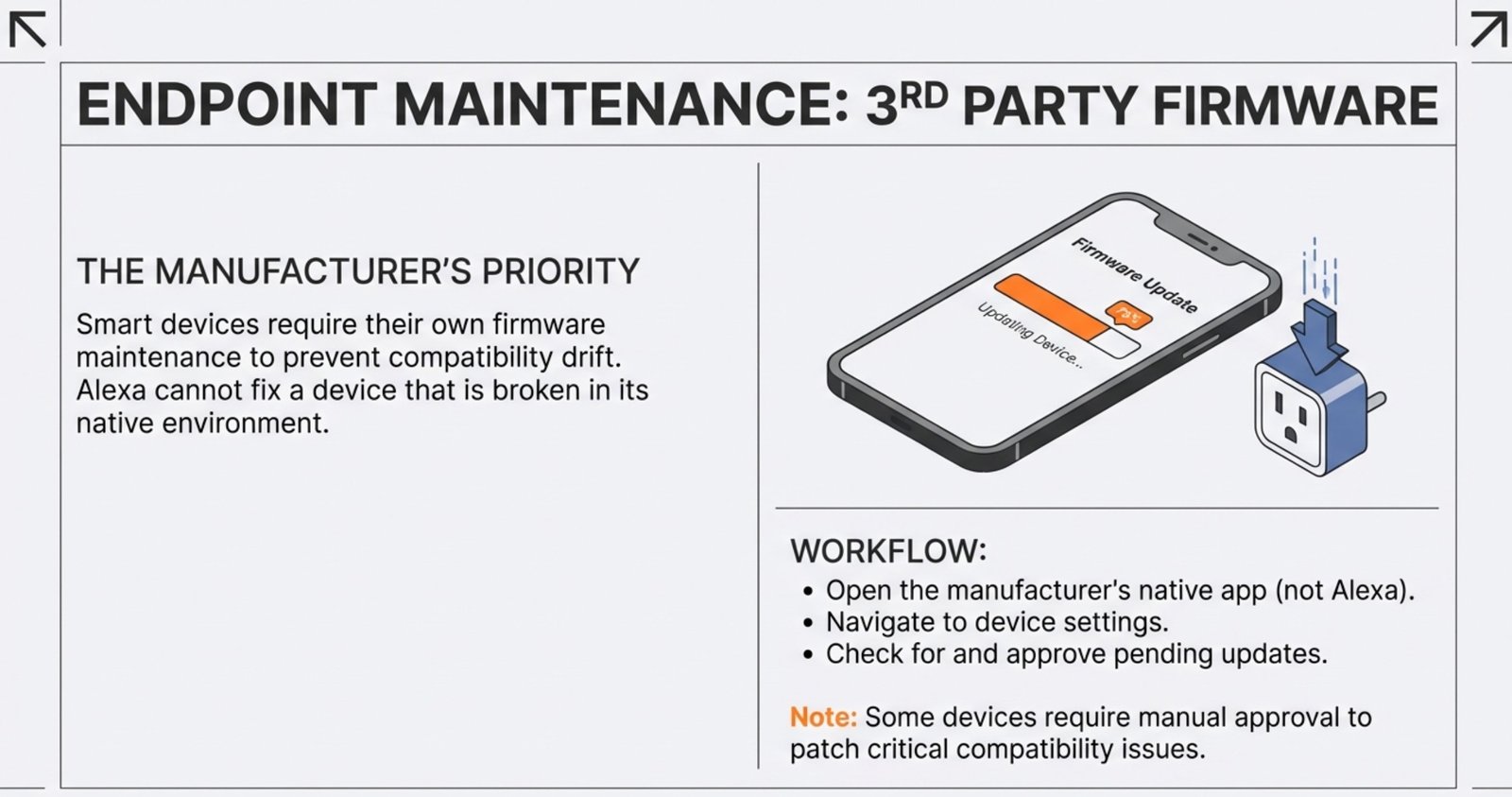
Old software can block communication. Update your Alexa app in your phone’s app store first.
For Echo updates, open the Alexa app, tap Devices, pick Echo & Alexa, choose your Echo, tap the settings gear, and scroll to About. Updates install automatically if your Echo is plugged in and online.
Smart devices need firmware updates too. Open the manufacturer’s app and check for updates—usually in settings. Some update on their own, others need you to approve. Keeping everything up-to-date helps avoid weird compatibility problems (see more in these smart home guides).
Step 3: Restart Router, Then Reset the Device (In That Order)
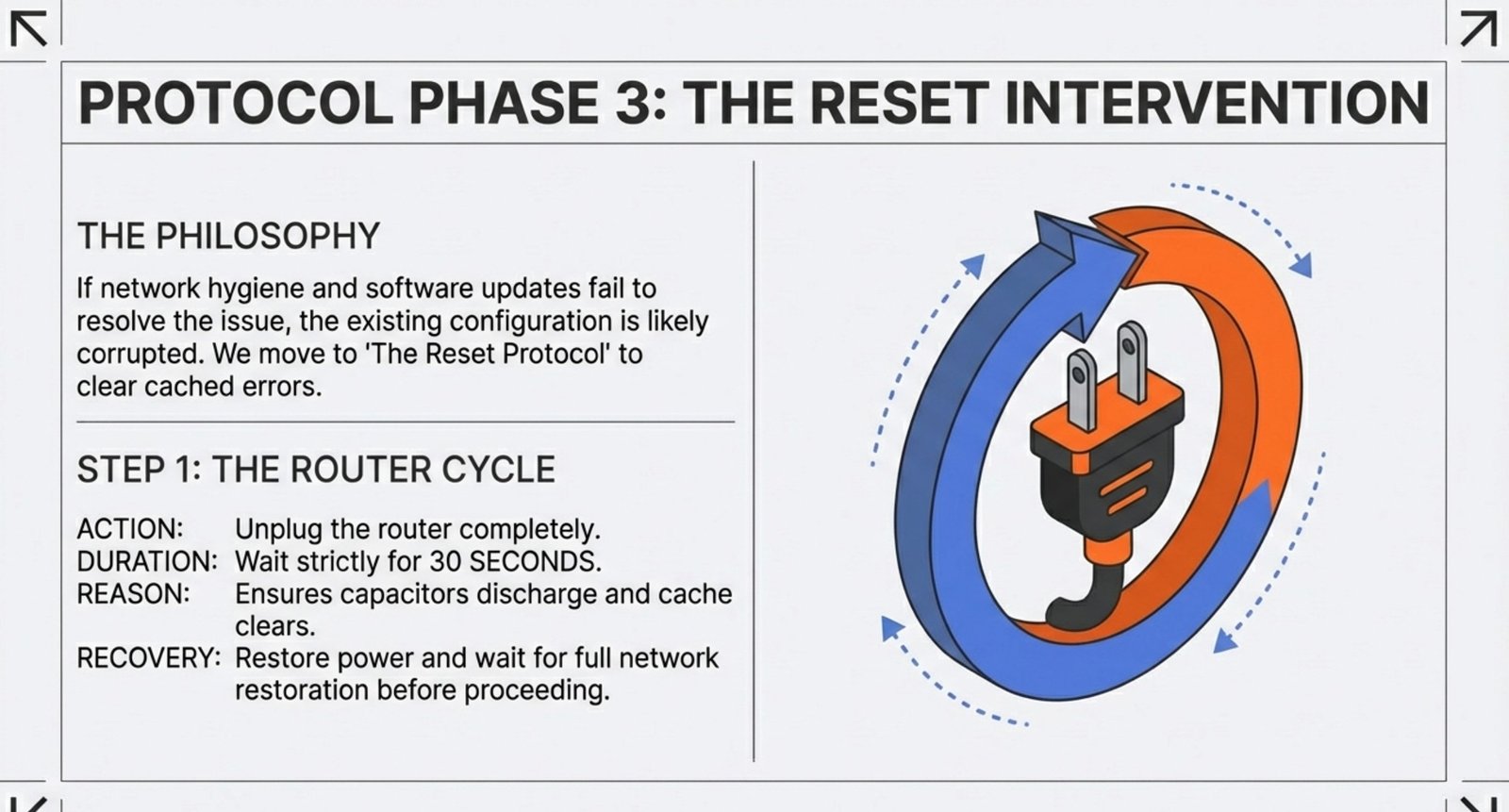
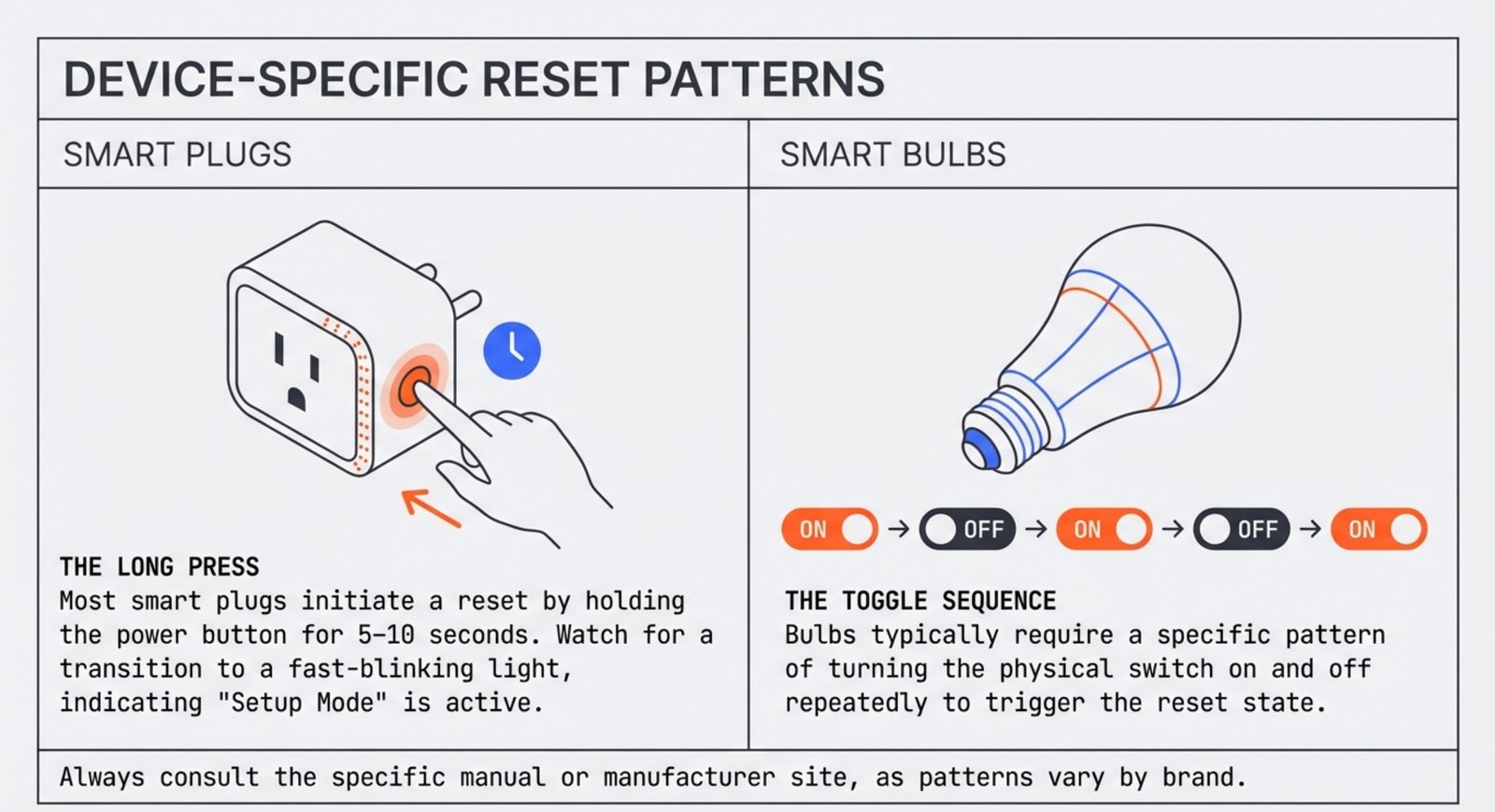
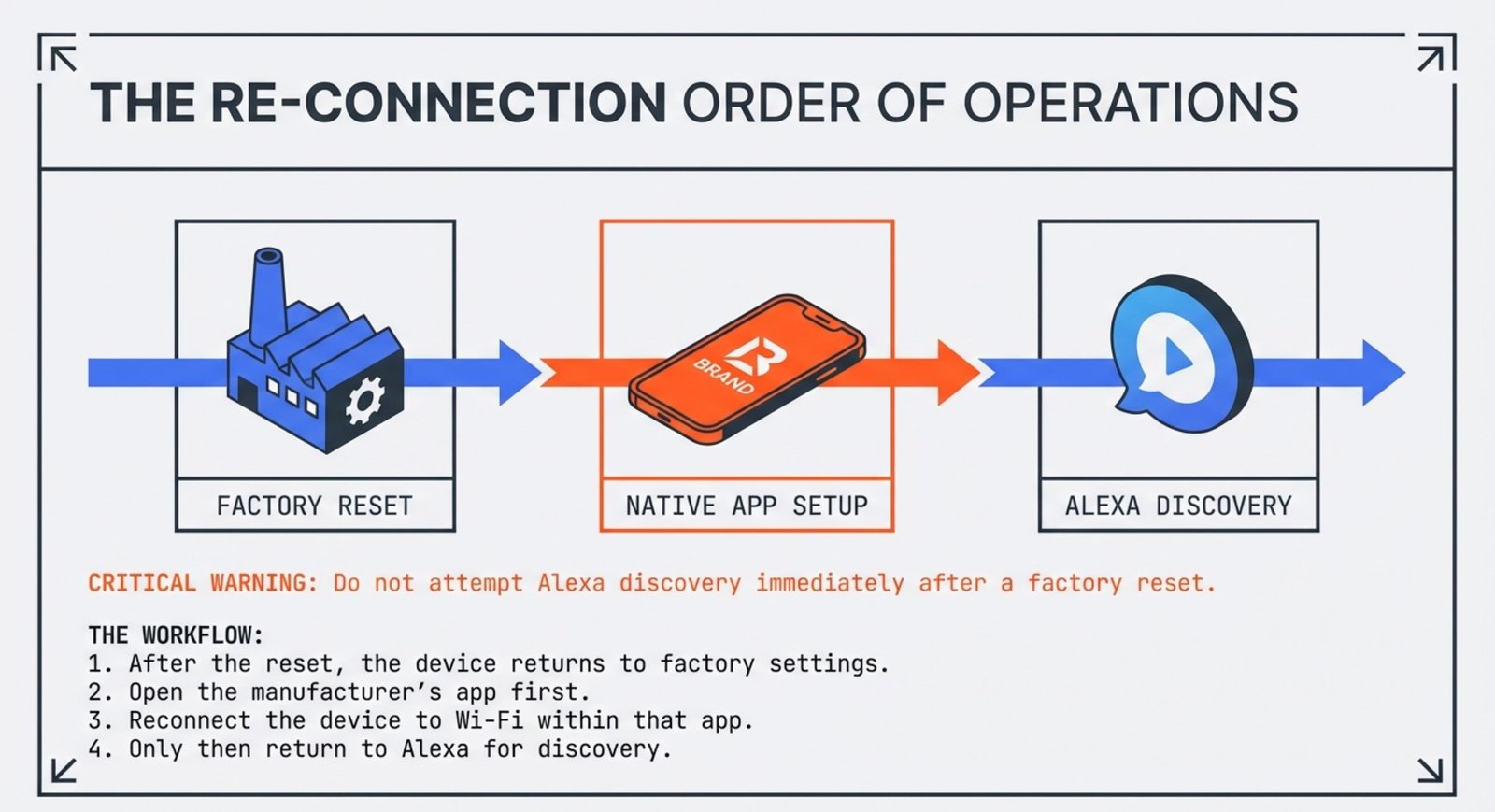
If updates don’t fix it, try resetting. Start with your router—unplug it for 30 seconds, then plug it back in.
Resetting smart devices depends on the brand. Most plugs want you to hold the power button for 5-10 seconds until the light blinks fast. Bulbs usually need to be turned on and off a certain way. Check the manual or manufacturer’s site for the exact steps.
After a reset, your device is in setup mode again. Reconnect it to Wi-Fi in the manufacturer’s app before trying Alexa discovery.
Step 4: Add the Device Manually (When “Discover Devices” Fails)
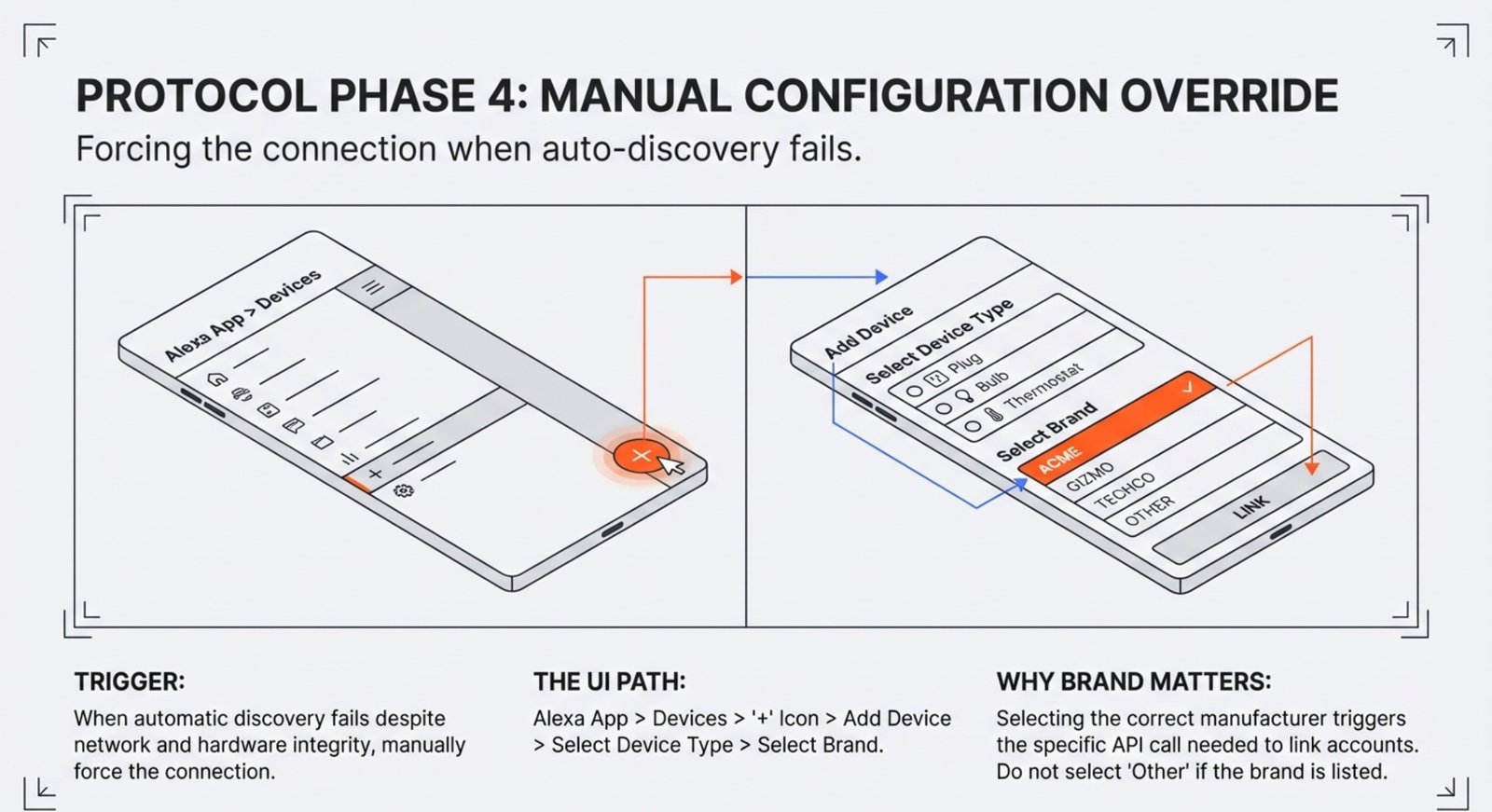
When Alexa discover devices not working, manual add is often faster than waiting for automatic discovery.
Open the Alexa app, tap Devices at the bottom, then the + in the top right, and pick Add Device. Find your device type and brand.
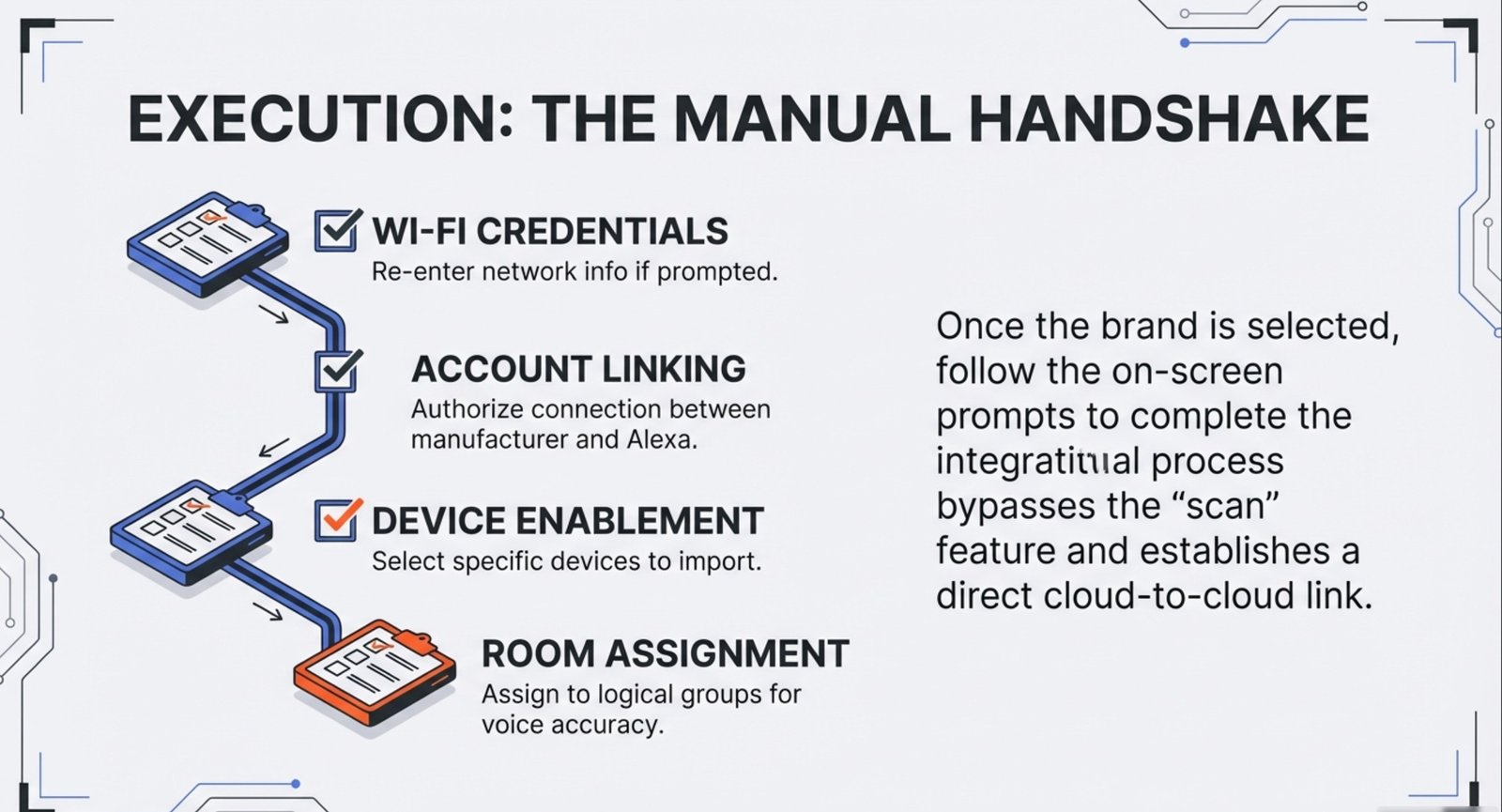
Picking the right brand matters. Choose your manufacturer, then follow the instructions. Usually, you’ll need to:
- Enter Wi-Fi info
- Link your manufacturer account to Alexa
- Pick which devices to enable
- Assign devices to rooms
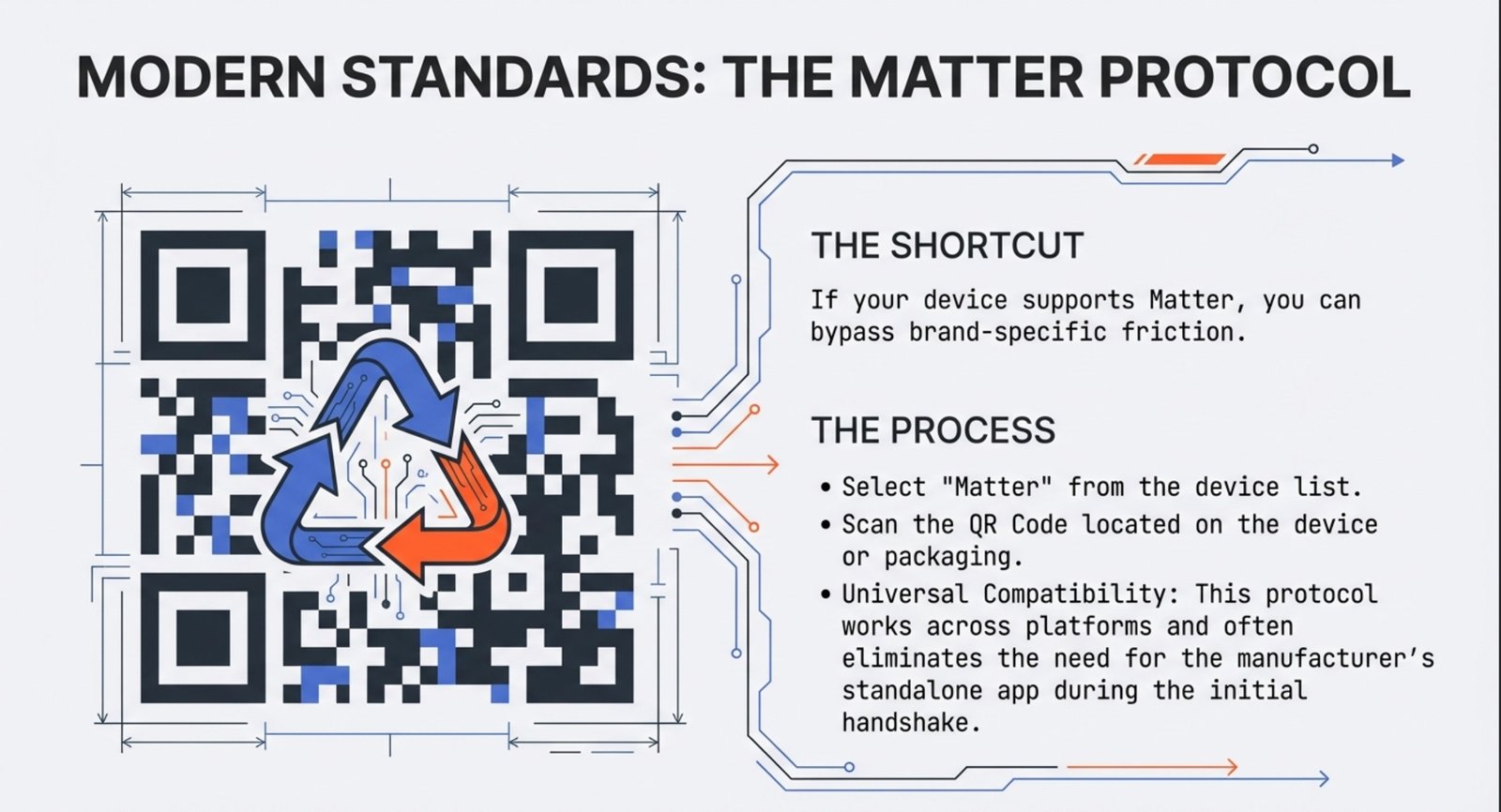
If your device supports Matter, pick Matter and scan the QR code on the device or box. This process works across different platforms, often without needing the manufacturer’s app.
Step 5: Fix Skills + Account Linking (Devices Work in Brand App, Not Alexa)
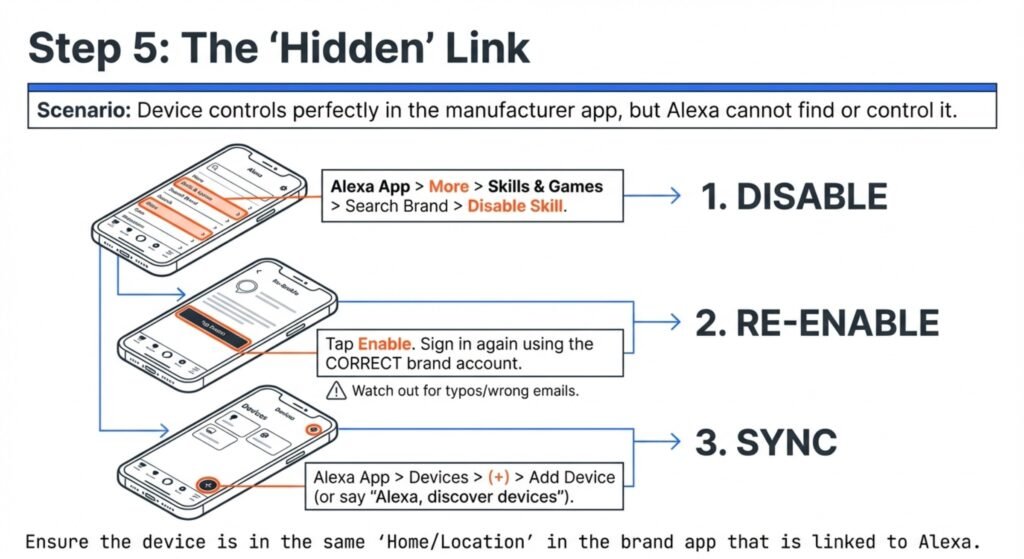
If the device works inside the brand’s app but smart device not showing in alexa app, it often explains why alexa not discovering devices—the problem is usually the skill or account link, not Wi-Fi. This is one of the top reasons alexa cant find smart devices even when setup looks “done.”
Do this in order:
- Open the Alexa app → More → Skills & Games → search the brand → Disable Skill
- Re-enable the skill and sign in to the correct brand account (wrong email = missing devices)
- Alexa app → Devices → + → Add Device (or run discovery again)
- If you have multiple “homes”/“locations” in the brand app, confirm the device is in the same home that Alexa is linked to
- If the skill supports it, use Settings → Manage Devices → Refresh/Sync (wording varies by brand)
Quick clue you’re in this scenario: the device controls fine in the manufacturer app, but alexa device discovery not working no matter how many times you scan.
Step 6: Remove Ghost Devices, Then Re-Discover
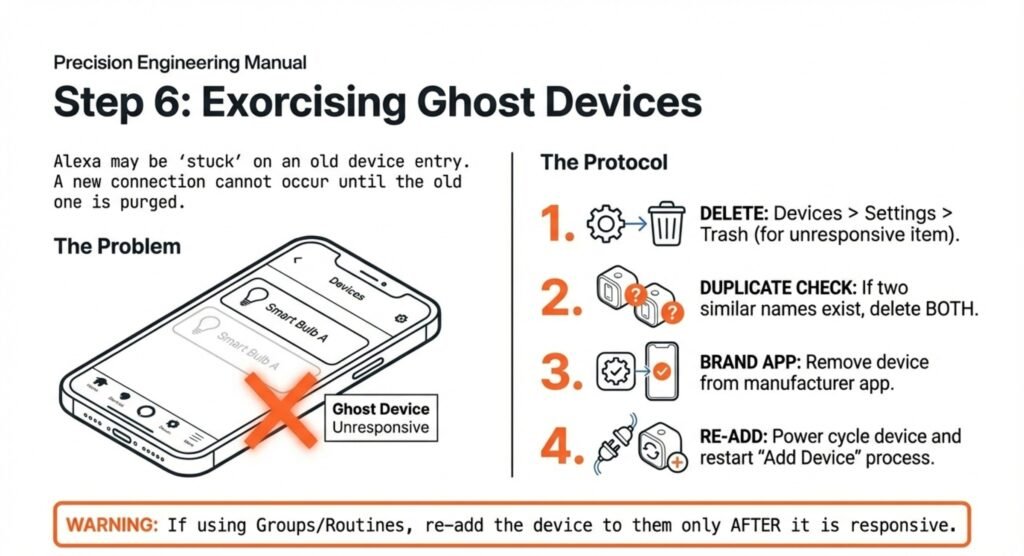
Sometimes alexa device discovery not working because Alexa is “stuck” on an old entry—especially if you reset the gadget, changed Wi-Fi, or set it up more than once. This can look like a smart device not showing in alexa app, or it shows up but won’t control.
Clean it up like this:
- Alexa app → Devices → find the device (or a duplicate) → Settings → Trash/Delete
- If the device also exists in the brand app, remove it there too (so you don’t re-sync the same broken entry)
- Power-cycle the device (off/on), then put it back into pairing mode
- Go back to Alexa → Add Device (manual add is often better than repeated scans)
- If you use Groups/Routines, re-add the device only after it responds correctly once
Tip: If you see two devices with nearly the same name (or one that says “unresponsive”), delete both and re-add cleanly.
Optional Compatibility Shortlist (If Discovery Keeps Failing)
If you’ve followed Steps 1–6 and discovery still fails, the problem may be the device’s integration—not you. This optional shortlist is here as a reference: examples of devices that typically pair cleanly and stay stable in the Alexa app (useful when you’re troubleshooting a stubborn setup or replacing unreliable gear).
Quick note: If you mainly struggle with alexa not finding devices on wifi, start with Step 1–3 first. If your device works in its own app but Alexa can’t see it, skip to Step 5 (skills + account linking).
|
Amazon Smart Plug
Alexa-native
|
Echo (4th Gen) — built-in hub
Hub / Speaker
|
Philips Hue White & Color Starter Kit
Bridge-based
|
Lutron Caseta Dimmer Starter Kit
Bridge-based
|
Ring Battery Doorbell
Works with Alexa
|
|
|---|---|---|---|---|---|
| Category | Smart Plug | Smart Home Hub | Smart Lighting | Smart Switch / Dimmer | Video Doorbell |
| Why it’s well-adapted with Alexa | Fewer moving parts: it’s designed for Alexa routines and voice control, so setup is typically smooth inside the Alexa app. | Built-in hub can reduce discovery friction for compatible hub-based devices, avoiding some Wi-Fi pairing headaches. | The Bridge keeps bulbs off busy Wi-Fi; Alexa controls the Hue system as a whole, which tends to feel stable once linked. | Bridge-based lighting control is consistent for rooms; Alexa control is reliable once the bridge/account link is set correctly. | Strong Alexa integration for announcements and viewing on compatible Alexa screens, making it a clean “doorbell + Alexa” pairing. |
| Pros |
|
|
|
|
|
| Cons |
|
|
|
|
|
| Other ecosystems (non-Alexa) | Primarily Alexa-focused. | Mostly Alexa-centric; hub features are built around Alexa control. | Often supports multiple ecosystems via Hue integrations (varies by setup). | Often supports multiple ecosystems/assistants (depends on kit/integration). | Works mainly through its own app ecosystem; support elsewhere varies by model/features. |
| Amazon Link | View on Amazon | View on Amazon | View on Amazon | View on Amazon | View on Amazon |
Common Mistakes Beginners Make
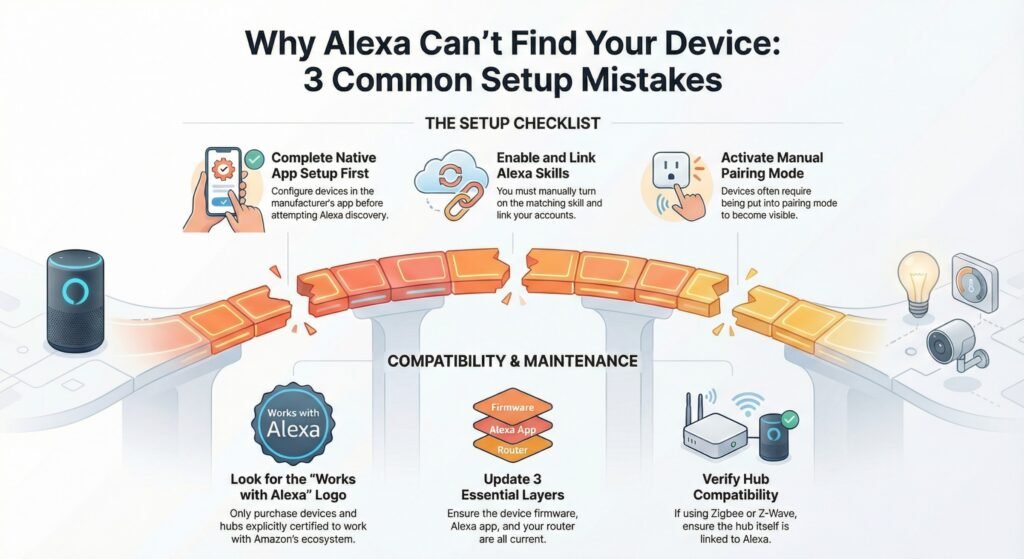
Lots of people accidentally make it harder for Alexa to find their devices. The biggest mistakes? Skipping important setup steps, buying stuff that just isn’t compatible, or forgetting to update software that makes discovery work smoothly.
Skipping Setup Instructions
If you’re new to smart home stuff, it’s easy to just plug in a gadget and hope Alexa magically finds it. Honestly, that almost never works. Most smart devices want you to install the manufacturer’s app and set everything up there before Alexa even knows they exist. Take something like a Philips Hue bulb—you’ve gotta finish the setup in the Hue app and then turn on the Hue skill in Alexa before any of the “discovery” magic happens.
Steps people usually forget:
- Making an account in the device’s own app
- Turning on the matching Alexa skill
- Linking your device account to Alexa
- Putting the gadget into pairing mode (yep, that’s a thing)
These aren’t just random extra steps—they’re actually what connects your device, its cloud, and Amazon’s servers. Skip them, and Alexa is basically talking to a wall. No connection, no control.
Mixing Up Device Compatibility
Another big one: people buy smart devices without checking if Alexa even works with them. Just because something has Wi-Fi doesn’t mean it’ll play nice with Amazon’s voice assistant. Some gadgets are made for Google Home or Apple HomeKit only, and that’s it.
Always look for “Works with Alexa” or the Alexa logo on the box. If a device needs a separate hub—like Zigbee or Z-Wave stuff—make sure that hub works with Alexa too. It’s easy to assume, but if your hub isn’t tied to Alexa, nothing gets found.
Honestly, checking compatibility before you buy saves a ton of headaches later. Common smart home setup mistakes usually start with assuming every smart device will just work with every assistant. It’s worth reading the specs and some real customer reviews, since marketing language can be… let’s say, optimistic.
Ignoring Firmware Updates
Firmware—yeah, that boring software update stuff—actually matters a lot. Devices or even the Alexa app itself running old software can block discovery. Makers push out updates all the time to fix bugs or add features. If your gear is out of date, Alexa might just ignore it.
Both your smart device and the Alexa app need to be current. Start by checking for updates in the device’s app, then update Alexa through your phone’s app store. Some gadgets update themselves over Wi-Fi, but lots still need you to hit “update” in their app.
Don’t forget your router, either. Old router firmware can mess with network traffic and block smart home connections. Keeping everything up to date makes it way more likely Alexa will actually find and control your stuff.
Limitations & Downsides
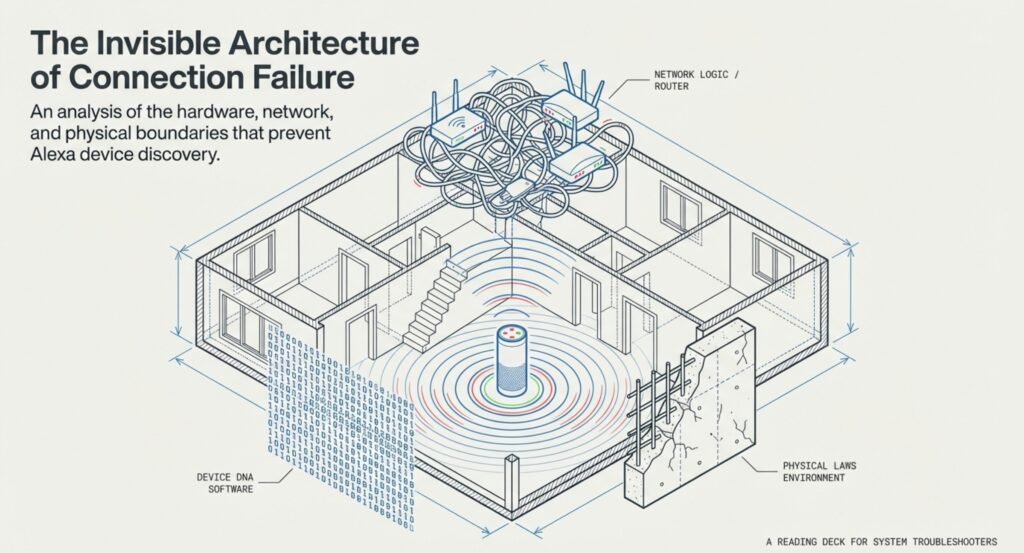
Even if you do everything right, Alexa’s device discovery isn’t perfect. There are built-in limits, and sometimes a device just won’t ever connect, no matter how many times you try.
Device Compatibility Gaps
Some smart home gear just doesn’t talk to Alexa. Older devices might not have the Wi-Fi features or APIs Alexa needs. Cheaper brands sometimes skip Alexa support to save money, so you’re stuck if you want to use them with Amazon.
Stuff that runs on Zigbee, Z-Wave, or Thread needs a compatible hub. Alexa can’t see those on its own unless you have an Echo Plus, Echo Show 10, or a bridge like the Philips Hue. Sometimes you still need to set things up in the manufacturer’s app before Alexa can see them at all.
Common issues that block compatibility:
- Devices that only support 5 GHz Wi-Fi can be tricky, since many smart-home devices (and some setups) rely heavily on 2.4 GHz for onboarding and stability.
- Smart plugs or bulbs with no “Works with Alexa” badge
- Security cameras using weird, proprietary protocols
- Thermostats that need pro installation or special accounts
Network and Connectivity Issues
Smart home systems run into all sorts of technical hiccups that can mess with reliable device discovery. Sometimes, it’s just your router settings—things like AP isolation, network segmentation, or those pesky guest network restrictions get in the way and block Alexa from talking to new devices. Most routers keep guest networks totally separate from your main one for security, which is great… unless you want Alexa to find a new gadget. In that case, it’s just a headache.
Wi-Fi congestion is another pain. If you’ve got too many devices fighting for space on one router, your network can get overwhelmed and drop the ball on discovery requests. And mesh networks? They’re supposed to help, but sometimes they split things into different subnets, so Alexa can’t even see devices on other nodes. Frustrating, right?
And here’s something people don’t always realize: distance actually matters—a lot. If the device is far from the router/Echo—or behind thick walls or metal appliances—signal quality can drop enough that discovery fails.
Real People, Real Discovery Fail Patterns (So You Don’t Feel Crazy)
When Alexa not discovering devices won’t stop, it’s easy to assume you’re missing something obvious. But a lot of real users hit the same few “repeat offender” patterns—especially when the device works fine in the brand app but is a smart device not showing in alexa app.
Pattern #1: “It works in the brand app… but Alexa can’t see it”
This is one of the most common causes behind Alexa cant find smart devices. The device is connected and controllable in the manufacturer app, but Alexa doesn’t pull it in because the skill is disabled, linked to the wrong account, or stuck on an old authorization. Your fix path here is Step 5 (Skills + Account Linking)—not more Wi-Fi resets.
Pattern #2: “Ghost devices” / duplicates block a clean re-add
Sometimes Alexa device discovery not working isn’t about your new device at all—Alexa is stuck on an old entry (duplicates, renamed devices, devices you removed months ago). That’s when you see “unresponsive” devices or a smart device not showing in alexa app even after repeated scans. Your fix path is Step 6 (Remove Ghost Devices, Then Re-Discover).
Pattern #3: “Wi-Fi is fine, but discovery still fails”
If Alexa not finding devices on wifi happens even though everything is online, the issue is often network behavior rather than “internet down”—guest network isolation, device isolation, mesh nodes/subnets, or discovery signals not passing correctly. Your fix path is Step 1–3, especially “same network,” then restart order.
Alexa Not Discovering Devices: Quick FAQ
Why is Alexa not discovering devices even though the device works in its own app?
Usually the device is connected, but the Alexa skill is disabled, linked to a different account, or needs re-auth. Re-enable the skill and refresh device discovery.
Alexa can’t find smart devices on Wi-Fi — what’s the first thing to check?
Confirm your Echo and the device are on the same Wi-Fi network (and try 2.4 GHz during setup). Also avoid guest networks or VPNs during pairing.
Alexa not finding smart plugs — do I need to reset them?
Try a restart first, then confirm the plug is in pairing mode. If it still won’t appear, remove it from the Alexa app (if present) and re-add it after reconnecting in the manufacturer app.
Alexa won’t discover smart bulbs — what causes that most often?
Bulbs frequently fail discovery when they aren’t in pairing mode, are on the wrong Wi-Fi band, or were previously paired to another account/home. A proper reset + fresh setup usually fixes it.
What does “smart device not showing in Alexa app” usually mean?
It typically means discovery didn’t complete, the skill/account link isn’t active, or there’s a stale/duplicate device entry. Removing the device and re-adding it is often the fastest fix.
If Alexa discover devices not working, should I use manual add instead?
Yes—manual add is often more reliable than repeated scans, especially when the device needs a brand selection, account linking, or a Matter QR code scan.
You May Also Read
Smart Camera Live View Not Working? Quick Fixes To Restore The Feed
Smart Home Compatibility Explained: How Devices Really Work Together